QuickBooks-Error-6000-Series

Are you unable to open your QuickBooks company file because of a QuickBooks Error 6000 Series? This error can occur when QuickBooks has trouble accessing a company file stored on your computer or network. The exact reason for the issue can vary depending on the specific error code.

The error can be caused by several issues, including damage to the company file, incorrect hosting settings, network connectivity problems, firewall interference, limited folder permissions, or problems with the QuickBooks installation.
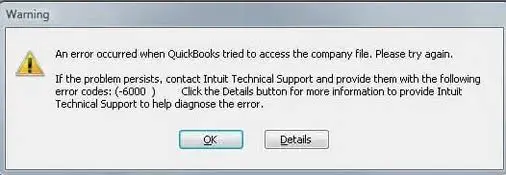
QuickBooks Error 6000 Series

In this guide, you’ll learn about the common QuickBooks Error 6000 Series codes, what they mean, why they occur, and how to troubleshoot them so you can get back to your company file.

What are QuickBooks 6000 Series Errors?

The QuickBooks 6000 Series Errors are a group of company file errors that can appear when the QuickBooks program is unable to open, access, or connect to a company file. You may encounter these errors when opening a file stored on your computer, accessing it from a network, or working in multi-user mode.

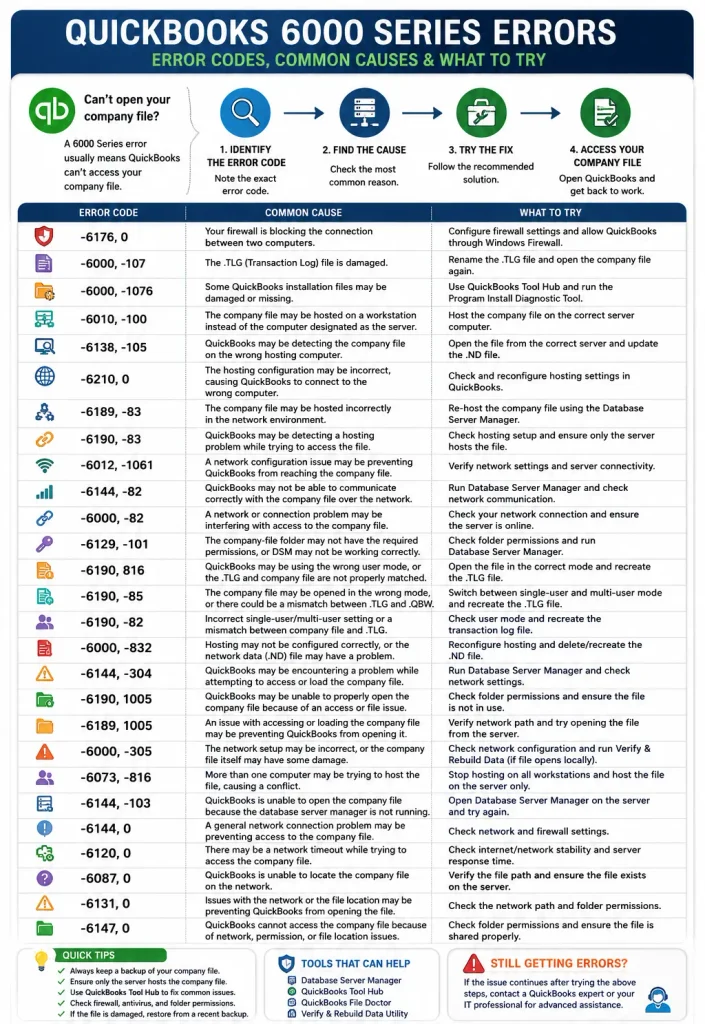
So, before trying fixes, it’s better to identify the exact QuickBooks Error 6000 series you’re seeing. The table below covers the common error codes and their possible causes, which can help you narrow down the problem and choose the appropriate troubleshooting method.

QuickBooks 6000 Series Errors and Their Possible Causes

ErrorPossible Causes
Error -6176, 0Your firewall is blocking the connection between two computers.
Error -6000, -107The .TLG (Transaction Log) file is damaged.
Error -6000, -1076Some QuickBooks installation files may be damaged or missing.
Error -6010, -100The company file may be hosted on a workstation instead of the computer designated as the server.
Error -6138, -105QuickBooks may be detecting the company file on the wrong hosting computer.
Error -6210, 0The hosting configuration may be incorrect, causing QuickBooks to connect to the wrong computer.
Error -6189, -83The company file may be hosted incorrectly in the network environment.
Error -6190, -83QuickBooks may be detecting a hosting problem while trying to access the company file.
Error -6012, -1061A network configuration issue may be preventing QuickBooks from reaching the company file.
Error -6144, -82QuickBooks may not be able to communicate correctly with the company file over the network.
Error -6000, -83A network or connection problem may be interfering with access to the company file.
Error -6129, -101The company-file folder may not have the required permissions, or the Database Server Manager may not be functioning correctly.
Error -6190, 816QuickBooks may be using the wrong user mode, or the transaction log and company file may no longer be properly matched.
Error -6190, -85The company file may be opened in the wrong mode, or there could be a mismatch involving the .TLG and .QBW files.
Error -6190, -82An incorrect single-user/multi-user setting or a mismatch between the company file and transaction log may be involved.
Error -6000, -83Hosting may not be configured correctly, or the network data (.ND) file may have a problem.
Error -6144, -304QuickBooks may be encountering a problem while attempting to access or load the company file.
Error -6190, 1005QuickBooks may be unable to properly open the company file because of an access or file-related problem.
Error -6189, 1005An issue with accessing or loading the company file may be preventing QuickBooks from opening it.
Error -6000, -305The network setup may be incorrect, or the company file itself may have some damage.
Error -6073, -816More than one computer may be trying to host the file, or firewall restrictions or company-file damage may be interfering with access.
Error -6144, -103The network data (.ND) file may point to the wrong company-file location, or the Database Server Manager user account may have an issue.
Error -6144, 0QuickBooks may be reading an incorrect path from the .ND file, or the Database Server Manager account may be affected.
Error -6123, 0QuickBooks may be having trouble accessing the company file because of a network connection, file-location, or company-file issue.
Error -6087, 0The company file may already be open directly on the computer where you’re trying to access it.
Error -6131, 0QuickBooks may be attempting to access a company file that is already open locally.
Error -6147, 0QuickBooks may encounter a problem while opening the company file or restoring a .QBB backup.

Common Reasons Behind QuickBooks Error 6000 Series

QuickBooks may show a 6000 series error when something prevents it from reaching or opening the company file. The cause isn’t always the company file itself. In many cases, the problem comes from the way QuickBooks is connected to the File or how the system is configured.

Here are some common reasons you may run into QuickBooks company file problems:

  • Company file damage: Problems with the .QBW file may stop QuickBooks from opening it.
  • Incorrect hosting: Hosting may be turned on for the wrong computer in a multi-user setup.
  • Network problems: A weak or interrupted connection can prevent QuickBooks from reaching the company file.
  • Firewall restrictions: Windows Firewall or security software may block QuickBooks from connecting to the File.
  • Damaged .ND or .TLG files: These files help QuickBooks access company files over a network. If they have problems, errors may occur.
  • Folder permission issues: QuickBooks may not have enough permission to access the folder where the company file is saved.
  • QuickBooks program issues: Damaged or missing QuickBooks files can also cause company File errors.
  • Wrong file location: Moving the company file or using an incorrect file path can sometimes prevent QuickBooks from opening it.

Signs You May Be Facing a QuickBooks Company File Won’t Open Error

You may notice these signs when QuickBooks is having trouble accessing your company file. These signs can help you recognize the problem and choose the right fix:

  • QuickBooks won’t open the company file and displays a QuickBooks Error 6000 series.
  • The company file takes longer than usual to open, or QuickBooks becomes unresponsive.
  • QuickBooks freezes or closes unexpectedly when you try to access the File. If the program stops responding completely, see our guide on QuickBooks Has Stopped Working.
  • Multi-user mode stops working, and other users cannot access the company file.
  • If QuickBooks cannot locate the company file after it has been moved or its location has changed, see our guide on QuickBooks Company File Not Found for additional file-location troubleshooting.
  • A backup or restored company file won’t open properly.
  • QuickBooks repeatedly shows the same 6000 series error even after restarting the program or computer.

How to Troubleshoot QuickBooks Company File Error?

To fix this problem efficiently, try the following solutions one by one and check the company file after performing each solution.

Method 1: Update Your QuickBooks Program

First, make sure you’re using the latest available QuickBooks release. Updates can fix bugs and compatibility issues that may affect access to your company file.

To update QuickBooks Desktop:
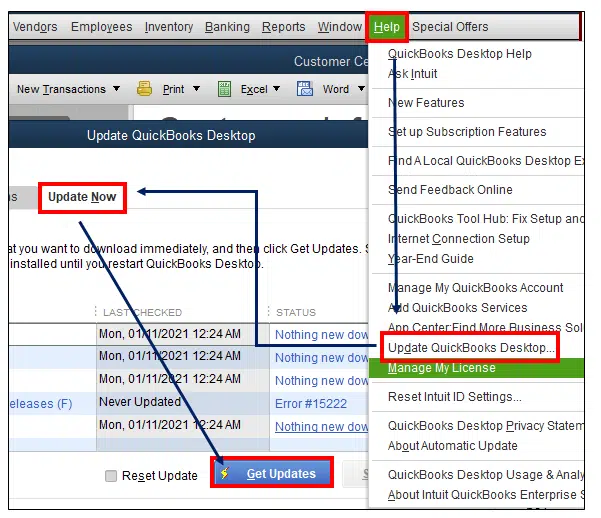
  • Open your QuickBooks Program.
  • Go to Help and select Update QuickBooks Desktop.
  • Open the Update Now tab.
  • Select Get Updates.
Get Updates
  • When the Update finishes downloading, close QuickBooks Desktop.
  • Reopen QuickBooks Desktop and install the available Update if prompted.
  • Try opening your company file again.

If the 6000 series error still appears, continue to the next method instead of repeatedly updating QuickBooks.

Method 2: Run QuickBooks File Doctor

If updating QuickBooks doesn’t resolve the QuickBooks Error 6000 Series, run QuickBooks File Doctor through QuickBooks Tool Hub.

Step 1: Install QuickBooks Tool Hub

If QuickBooks Tool Hub isn’t already installed on your computer:
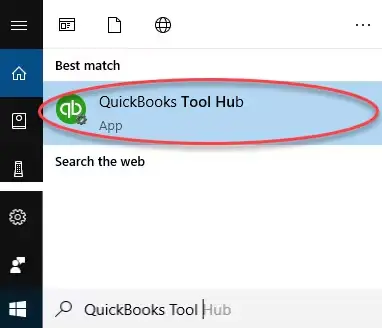
quickbooks-tool-hub

If you can’t find the Tool Hub icon, search for QuickBooks Tool Hub in Windows and open the program.
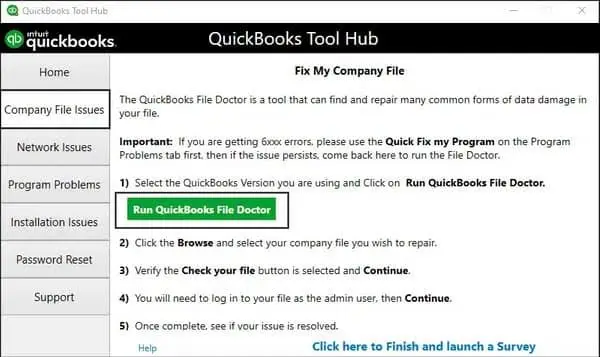
Step 2: Run QuickBooks File Doctor

  • Open QuickBooks Tool Hub.
  • Select Company File Issues.
  • Select Run QuickBooks File Doctor. It may take up to a minute for the tool to open.
Company-File-Issues-run-Quickbooks-file-docotor
  • Select your company file from the list.
  • If your company file isn’t listed, select Browse and locate your .QBW company file.
  • Select Check your File and then select Continue.
  • Enter your QuickBooks Admin password.
  • Select Next and allow File Doctor to complete the check.

Once the process finishes, open QuickBooks Desktop and try to open your company file again.

Method 3: Rename the .ND and .TLG Files

If QuickBooks File Doctor doesn’t resolve the QuickBooks Error 6000 Series, try renaming the Network Data (.ND) and Transaction Log (.TLG) files associated with your company file.
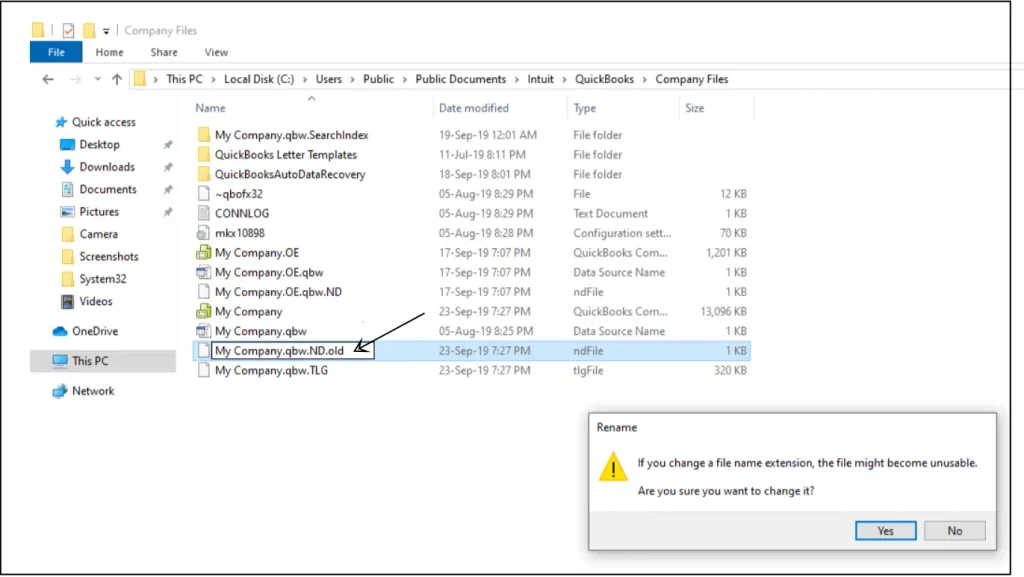
Rename the .ND and .TLG Files

Renaming these files does not delete your company file or accounting data. QuickBooks can create new versions of the files when needed.

How to rename the .ND and .TLG files:
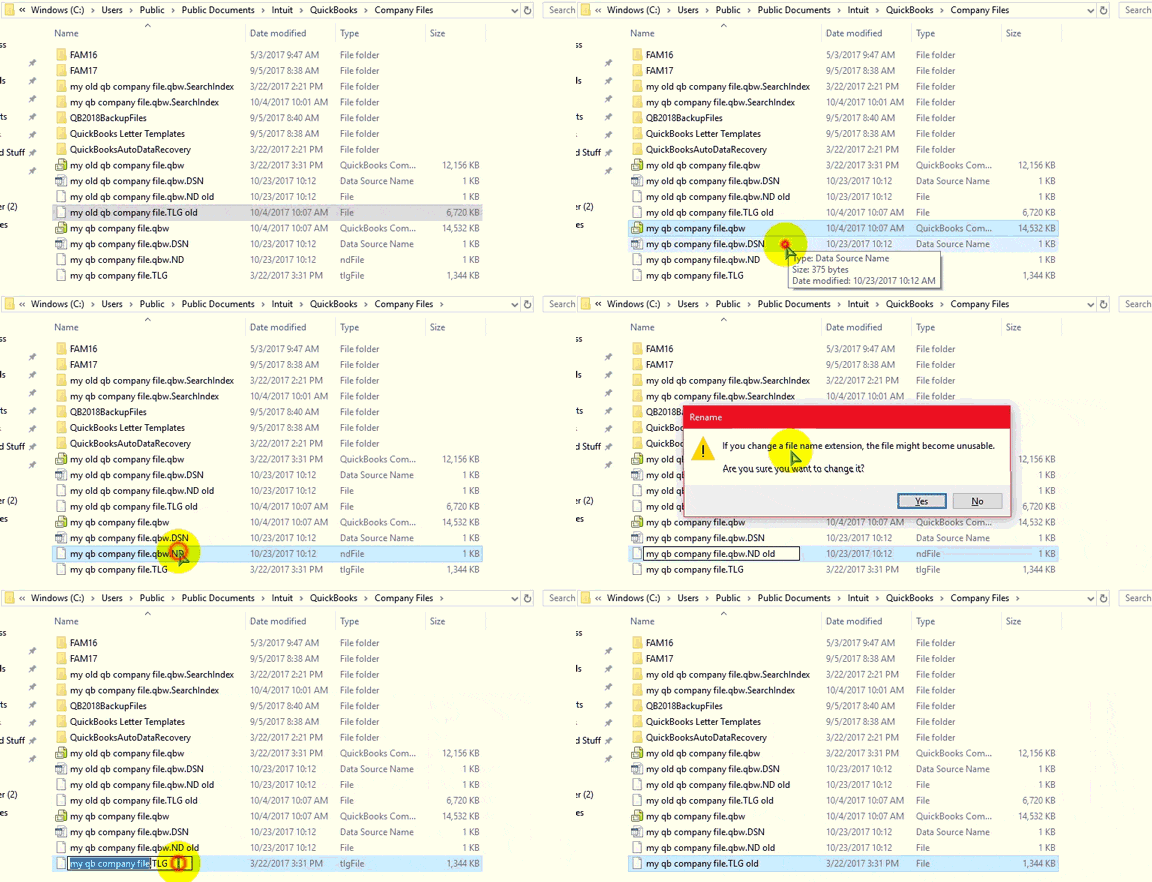
  • Close the QuickBooks program on your system.
  • Open your file explorer and go to the folder where your company file is saved.
  • Find the files with the same name as your company file and the .ND and .TLG extensions.
  • Now, click right on the .ND file and select Rename.
  • Add .OLD to the end of the existing file name.
Rename the .ND and .TLG File
  • Repeat the same process for the .TLG file: CompanyFile.qbw.tlg.OLD
  • Open QuickBooks Desktop again.
  • Try opening your company file.

Method 4: Open a Sample Company File

If renaming the .ND and .TLG files doesn’t fix the QuickBooks Error 6000 series, open a sample company file to determine whether the problem is with your company file or with QuickBooks Desktop itself. How to open a sample company file:
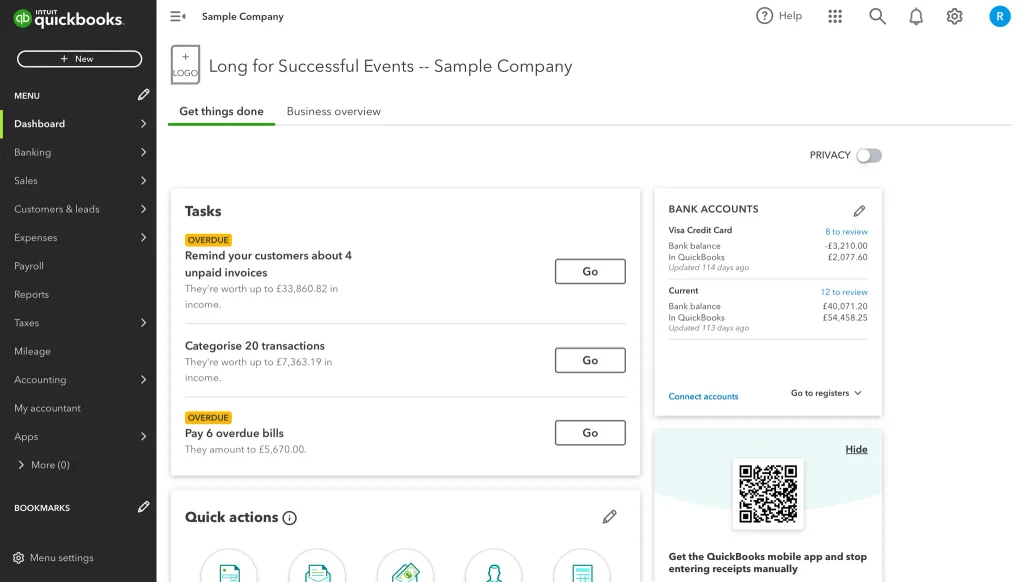
Open a Sample Company File
  • Close QuickBooks Desktop if it is currently open.
  • Press and hold the Ctrl key on your keyboard.
  • While holding Ctrl, open QuickBooks Desktop.
  • Continue holding Ctrl until the No Company Open window appears.
  • Select Open a Sample File.
  • Choose any sample company file from the available list.

Method 5: Copy the Company File to your Desktop

If the QuickBooks company file problems continues after testing a sample company file, try opening a copy of your company file from your computer.

This step helps you determine whether the problem is related to the location or path of the company file rather than the File itself. How to open a copy of the company file locally:

  • Open File Explorer and go to the folder where your QuickBooks company file is currently stored.
  • Find the company file with the .QBW extension.
  • Right-click the .QBW file and select Copy.
  • Go to your Desktop and right-click an empty area.
  • Select Paste to create a copy of the company file.
  • Close QuickBooks Desktop if it is open.
  • Press and hold the Ctrl key while opening QuickBooks Desktop. Keep holding it until the No Company Open window appears.
  • Select Open or restore an existing company.
  • Browse to the Copy of the .QBW file on your Desktop.
  • Open the copied company file.

Method 6: Check the Folder Permissions

If your QuickBooks is still showing a 6000 series error when you open your company file over a network. QuickBooks needs access to the folder so it can read and write the company file and communicate with other computers in a multi-user mode. How to check the folder permissions:
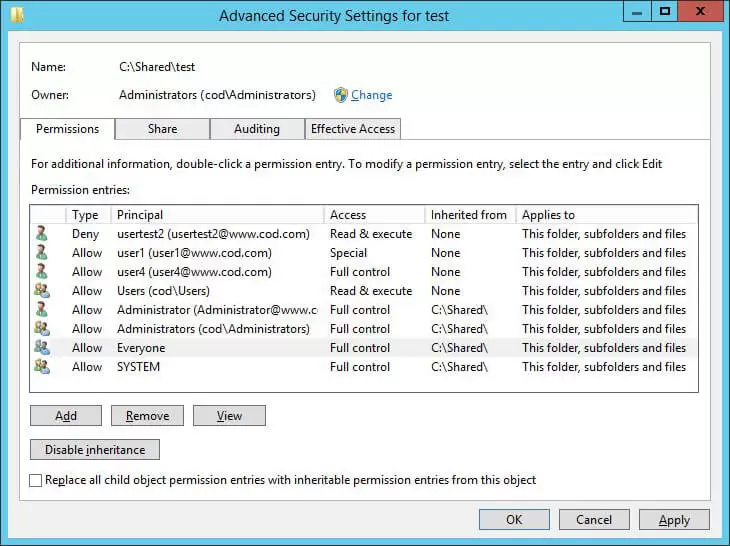
Check the Folder Permissions
  • Open File Explorer on the computer where the company file is stored.
  • Go to the folder containing your QuickBooks company file (.QBW).
  • Right-click the folder and select Properties.
  • Select the Security tab.
  • Check the users and groups listed and verify that the account used by QuickBooks has the required permissions to access the folder.
  • If the folder is shared over a network, also check its Sharing settings.
  • Apply any necessary permission changes.
  • Open QuickBooks Desktop again and try to access the company file.

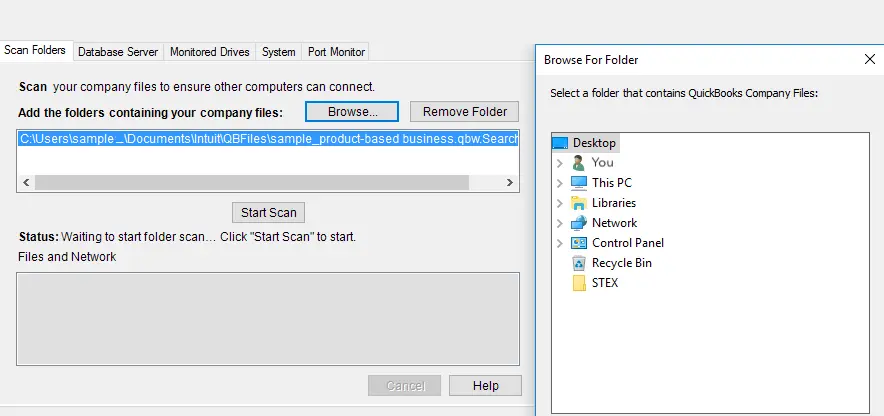
Method 7: Run QuickBooks Database Server Manager

If the company file is stored on a network and QuickBooks is not connecting to the server, use QuickBooks Database Server Manager to scan the folder containing your company file.

Here’s how to run QuickBooks Database Server Manager:
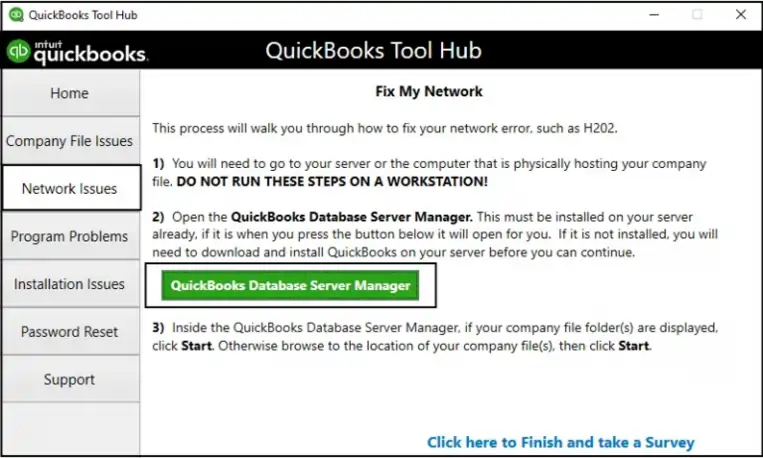
  • Open QuickBooks Tool Hub on the server computer.
  • Select Network Issues.
  • Select QuickBooks Database Server Manager.
Database Server Manager
  • If QuickBooks Database Server Manager isn’t installed on the server, follow the prompts to install it.
  • In Database Server Manager, check whether your company file folder is listed.
  • If the folder is listed, select Start Scan.
click-on-Start-Scan
  • If you don’t see the folder, select Browse and navigate to the location where your QuickBooks company file is stored.
  • Select Start Scan.
  • Wait for the scan to finish.
  • Open QuickBooks Desktop on the workstation and try to access the company file again.

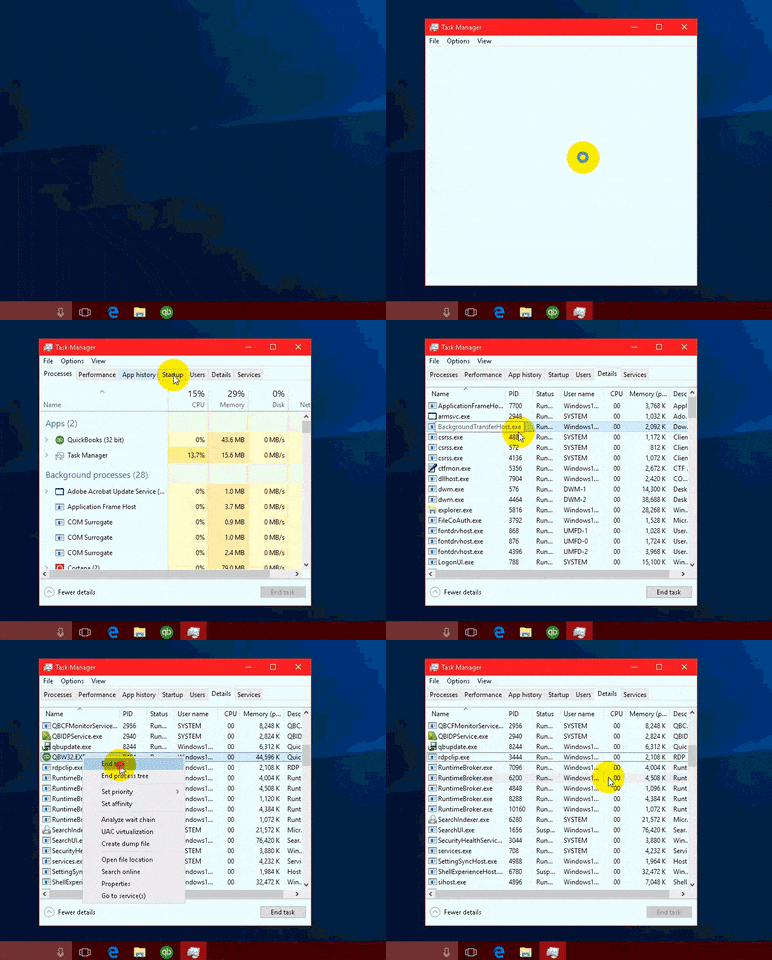
Method 8: Close All QuickBooks Processes

Closing these processes can clear a stuck QuickBooks session and allow the company file to open normally.

Look at the steps below to fix this problem:
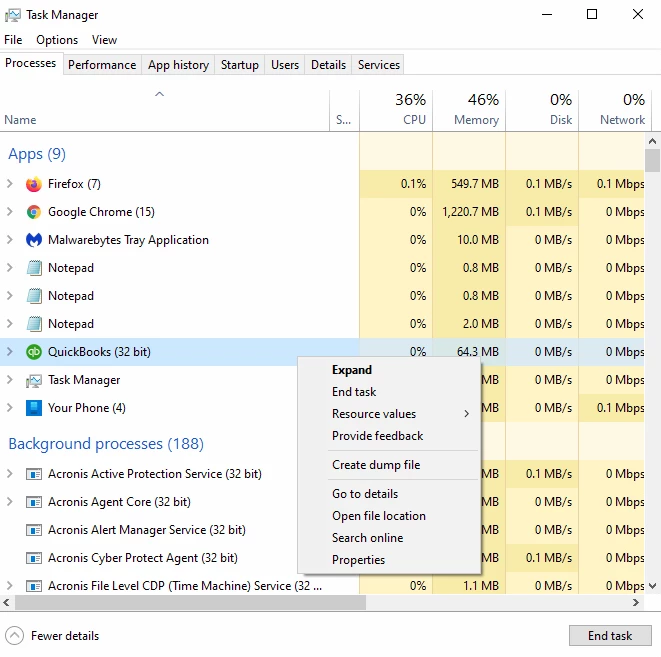
Close All QuickBooks Processes
  • Sign in to the server computer as a Windows administrator.
  • Press Ctrl + Shift + Esc to open Task Manager.
  • Select Users to view the processes running for each user.
  • Look for the following QuickBooks-related processes:
    • QBW32.EXE
    • qbupdate.exe
    • QBDBMgr.exe
  • Select each QuickBooks process and choose End Task.
Close All QB Processes
  • After closing the processes, open QuickBooks Desktop again.
  • Try opening the company file in multi-user mode.

Method 9: Configure Firewall and Antivirus Settings

Your firewall or antivirus software may be blocking QuickBooks from communicating with the server and triggering QuickBooks Error 6000 Series. How to check your firewall and antivirus settings:
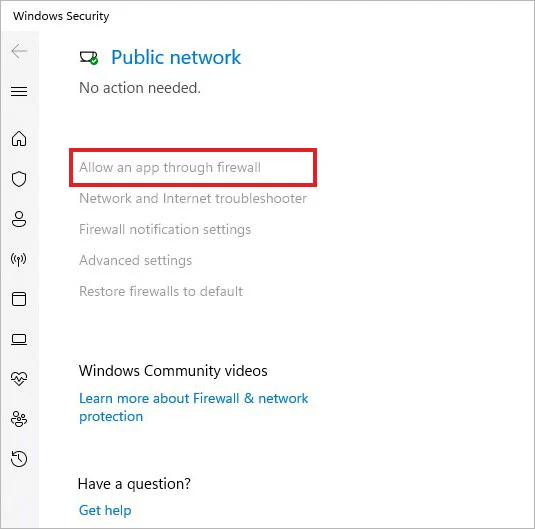
allow-an-app-through-firewall
  • Identify which firewall or antivirus program is active on the server and workstations.
  • Make sure QuickBooks Desktop is allowed through the firewall.
  • Check that your security software isn’t blocking QuickBooks programs or network connections.
  • If your antivirus program has application or network protection settings, check whether QuickBooks has been blocked.
  • Add the required QuickBooks applications or ports to the appropriate firewall exceptions if your network administrator or security-software documentation recommends doing so.
  • Save the changes and restart QuickBooks Desktop.
  • Try opening the company file again.

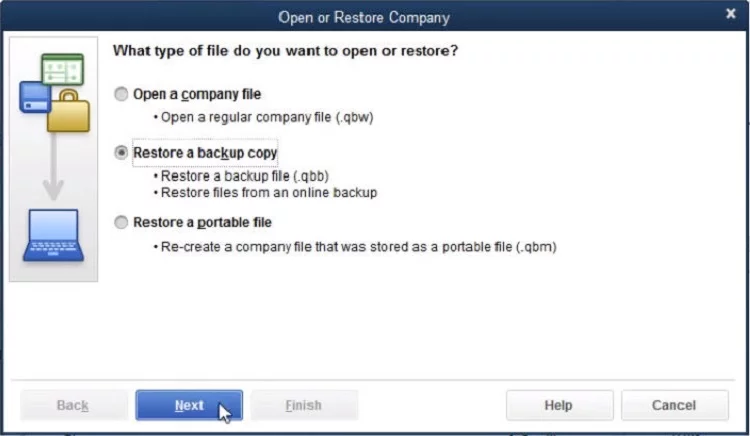
Method 10: Restore a Backup of Your Company File

If you’ve tried the previous troubleshooting methods and QuickBooks still won’t open your company file, the company file itself may be damaged. Restoring a recent backup can help you determine whether the problem is limited to your current .QBW file. How to restore a QuickBooks backup:
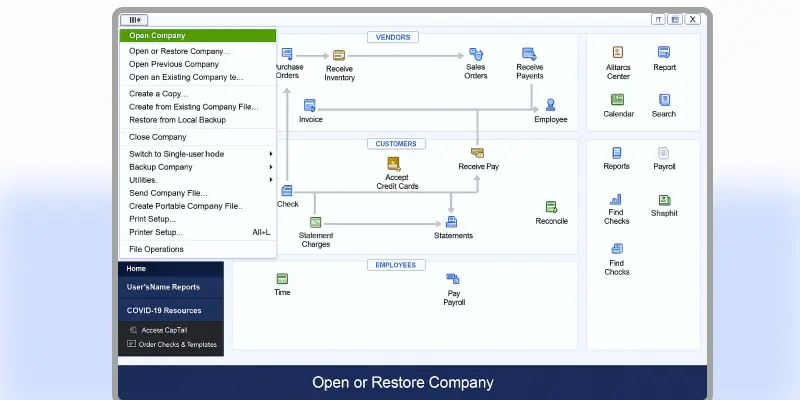
  • Open QuickBooks Desktop.
  • Go to File and select Open or Restore Company.
QB-error-6000-Using-Restore-Backup-Option
  • Select Restore a backup copy and then select Next.
Restore a backup copy
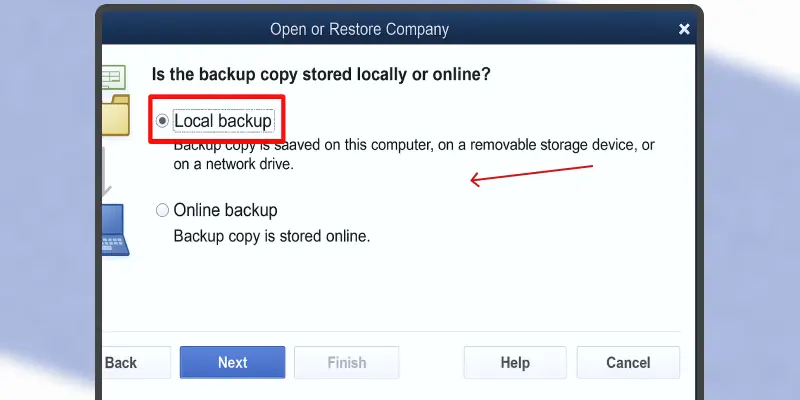
  • Choose Local Backup and select Next.
Choose Local Backup
  • Browse to the location of your QuickBooks backup file (.QBB).
  • Select the backup file and choose Open.
  • Select Next.
  • Choose a location where you want to save the restored company file.
  • Enter a new file name if necessary and select Save.
  • Open the restored company file and check whether the QuickBooks Error 6000 series still occurs.

What to Do If None of These QuickBooks Error 6000 Series Solutions Work?

If you’ve tried the troubleshooting methods above and QuickBooks still won’t open your company file, don’t continue making random changes to the file or network settings.

Try these additional checks to fix QuickBooks company file error:

  • If a sample company file opens normally but your company file doesn’t, the issue is more likely related to your company file or its location.
  • Try opening the company file from a simple local folder. This can help rule out problems with a network location, mapped drive, or complicated file path.
  • Check the exact error code again. Different QuickBooks Error 6000 Series can point to different causes, so use the specific code to narrow down the next troubleshooting step.
  • Run QuickBooks File Doctor again only when appropriate. Intuit specifically recommends it for several company-file and network errors, including some 6000-series errors.
  • Consider QuickBooks program repair. If sample company files also fail to open, the QuickBooks installation itself may need repair.

How to Prevent QuickBooks Error 6000 Series in the Future?

By following the simple tips below, you can prevent these recurring QuickBooks Error 6000 Series problems.

  • Keep QuickBooks Desktop updated: Install available updates so you’re working with the latest supported release.
  • Maintain regular company-file backups: Store verified backups separately from the working .QBW file so you have a recovery option if the company file becomes damaged.
  • Use the correct hosting configuration: In a multi-user environment, avoid enabling hosting on multiple workstations when a designated server is hosting the company file.
  • Keep the company File in an appropriate location: Avoid unnecessarily complicated folder paths and troubleshoot network or mapped-drive locations if they repeatedly cause access problems.
  • Review folder permissions: The server and QuickBooks users need appropriate access to the folder containing the company file.
  • Configure firewall and security software correctly: Security software should allow the QuickBooks components required for your network setup to communicate properly.
  • Avoid working from unsuitable storage locations: If a company file is stored on an external drive or another problematic location, test it from a local drive when troubleshooting access issues.
  • Don’t work from multiple copies of the same company file: Keep one clearly identified working company file and use copies only when troubleshooting or following a recovery procedure.
  • Check the File before assuming it is damaged: A QuickBooks Error 6000 Series can result from network, hosting, permissions, firewall, or configuration problems, not only company-file damage.

Conclusion

The QuickBooks Error 6000 Series can make it difficult to open or access your company file, but they don’t always mean your data is damaged. The problem could be related to network settings, hosting, file permissions, .ND or .TLG files, or the QuickBooks installation.

Start by checking the exact error code and then try the solution that matches the problem. If the error continues, keep a copy of your original company file and consider restoring a backup or using Auto Data Recovery.

With the right troubleshooting steps, you can identify the cause and work toward accessing your company file again. If you still need further Help, contact Data Service Team at +1(888)-718-7888 live experts for instant Help.

Frequently Asked Questions (FAQ’s)

QuickBooks Error 6000 Series are company file errors that can occur when QuickBooks Desktop cannot open, access, or connect to a company file. They may be caused by file damage, network issues, incorrect hosting, firewall restrictions, or folder permissions.

Yes, damage to the .QBW company file can prevent QuickBooks from opening it and may trigger a 6000 Series error. You can test this by opening a sample company file or a backup copy.

QuickBooks may be unable to open your company file because of damaged .ND or .TLG files, incorrect hosting settings, network problems, firewall restrictions, folder permissions, file-location issues, or problems with the QuickBooks installation.

Check that only the appropriate server is hosting the company file, then verify folder permissions, run QuickBooks Database Server Manager, check firewall settings, and make sure the workstations can communicate with the server.

Yes, if the .QBW company file is damaged, QuickBooks may not be able to open or access it. Try opening a sample file or restoring a recent backup to determine whether the issue is specific to your company file.

Yes, network connection problems, blocked QuickBooks connections, or incorrect firewall settings can prevent QuickBooks from communicating with the computer hosting the company file.

Verify and Rebuild Data is mainly used to identify and repair certain data integrity problems in a company file. If you cannot open the company file because of a 6000 Series error, first follow the appropriate company-file and network troubleshooting steps.

If File Doctor doesn’t resolve the issue, you can rename the .ND and .TLG files, open a sample company file, test a local copy of the company file, and review your network and firewall settings.


About The Author

Steven Moody

Steven Moody is a bookkeeping and payroll specialist dedicated to helping businesses maintain accurate financial records and efficient payroll operations. His expertise includes payroll management, tax compliance, bookkeeping solutions, and financial reporting. Steven regularly shares insights on accounting best practices and business finance strategies. Outside of work, he enjoys traveling, exploring new places, and keeping up with the latest developments in business technology.

Steven Moody

QuickBooks Error

QuickBooks Error 40001: How to Fix Payroll Update Issues

Read More
QuickBooks Error

QuickBooks QBmapi64 Out of Memory Error: How to Fix It

Read More
QuickBooks Error

QuickBooks Error 88888: Why It Occurs and How to Resolve It

Read More
QuickBooks Error

Intuit Download Manager Error: Why It Happens and How to Fix It

Read More
QuickBooks

QuickBooks Bank Reconciliation: How to Reconcile and Fix Errors

Read More