quickbooks-error-15240

QuickBooks error 15240 appears when the QuickBooks program can’t complete an update, particularly a payroll update. If you are experiencing other QuickBooks payroll update issues, you can also check our related troubleshooting guide.

This error may occur when QuickBooks encounters issues with system permissions, security settings, update files, or its program installation.
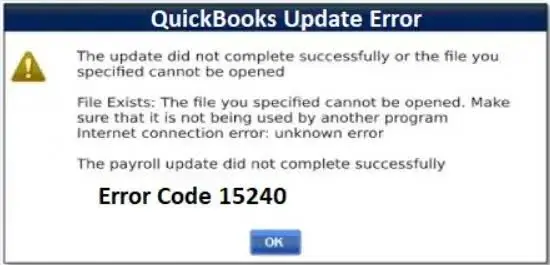
quickbooks-error-15240

The good news is that Error 15240 is usually fixable without affecting your company data. In this guide, we’ll explain why the error occurs and walk you through practical solutions, starting with the simpler checks before moving to more advanced troubleshooting steps.

Why is QuickBooks Showing Error 15240?

QuickBooks usually shows error 15240 when it can not complete the process of downloading or installing an update. It is commonly reported during payroll updates, although it can also occur while updating the QuickBooks program itself.

The update process requires QuickBooks to access certain files, communicate with Intuit’s update servers, and make changes to its installation folders. If something interrupts any of these steps, the update may stop and can display QuickBooks payroll update error 15240. Here are some common reasons:

  • Limited permissions: QuickBooks may not have sufficient Windows permissions to modify or replace update files.
  • Firewall or security software: Antivirus programs or firewalls can sometimes interfere with QuickBooks’ connection or block update components.
  • Incorrect system date and time: An incorrect clock can cause problems when QuickBooks verifies secure connections or update files.
  • Damaged program files: Corrupted QuickBooks files can prevent the update process from completing normally.
  • Installation problems: An incomplete or damaged QuickBooks installation may affect the program’s ability to apply new updates.
  • Update file access issues: If QuickBooks cannot access, download, or write the required update files, the process may fail.

What Causes the QuickBooks Error 15240?

There are multiple issues that can trigger QuickBooks Error 15240, and the cause isn’t always the same for every user. Understanding the possible reasons can help you choose the right troubleshooting method instead of trying every solution at random.

  • QuickBooks isn’t running with the required permissions: The update may need permission to modify files in QuickBooks’ installation folders.
  • Firewall or antivirus interference: Security software may restrict QuickBooks from connecting to its update servers or accessing required files.
  • Incorrect date and time settings: An inaccurate system clock can interfere with secure connections and update verification.
  • Damaged QuickBooks files: Corrupted or missing program files can prevent an update from being installed correctly.
  • Problems with the QuickBooks installation: An incomplete or damaged installation can interfere with the update process.
  • Unstable internet connection: A failed or interrupted download can leave QuickBooks without all the files needed to complete the update.
  • Windows-related issues: Outdated Windows components or permission problems may affect QuickBooks’ ability to install updates.

Knowing which of these issues is affecting your system can make troubleshooting much easier.

What are the Common Signs of QuickBooks Error 15240?

QuickBooks may display error code 15240 without causing any permanent damage to your company file. However, you may notice a few signs while trying to update the QuickBooks program or payroll services. You may see the signs below:

  • The update fails: QuickBooks stops the update process before the latest files are installed.
  • An error message appears: You may see a message indicating that the payroll or QuickBooks update did not complete successfully.
  • Payroll updates won’t download: If the problem occurs during a payroll update, you may be unable to download the latest payroll tax table.
  • QuickBooks repeatedly asks you to update: The application may continue prompting you to install an update even after an unsuccessful attempt.
  • QuickBooks becomes unresponsive: In some cases, the program may freeze or respond slowly while attempting to download or install the update.
  • The problem returns after retrying: Restarting QuickBooks and attempting the update again may not resolve the issue if the underlying cause remains.

If you’re experiencing these symptoms, the next step is to work through the troubleshooting methods below, starting with the simplest checks.

Proven Methods to Resolve QuickBooks Payroll Update Error 15240

Before trying the fixes below, close any unnecessary programs and make sure you have a recent backup of your QuickBooks company file. Then apply the methods one by one to resolve QuickBooks Error 15240.

Method 1 – Try Running QuickBooks As An Administrator

QuickBooks needs permission to access and update certain files on your computer. If Windows is restricting that access, the update may fail with Error 15240. To run QuickBooks with administrator rights:
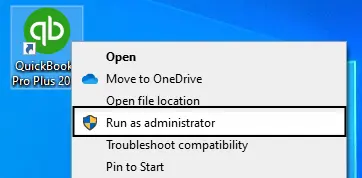
  • Close QuickBooks Desktop.
  • Find the QuickBooks icon on your desktop or in the Start menu.
  • Right-click it and select Run as administrator.
QuickBooks-Run-as-Administrator
  • Select Yes if Windows asks whether you want to allow the program to make changes.
  • Once QuickBooks opens, try downloading the update again.

If the update goes through this time, the issue was likely related to permissions. If you still see QuickBooks Error 15240, don’t keep repeating the same step; move on to the next fix.

Method 2 – Check your Computer’s Date & Time

This is another quick thing to check before moving on to more advanced fixes. QuickBooks relies on secure connections when communicating with Intuit’s servers, and an incorrect system date or time can sometimes interfere with that process. Here’s what to check:

current-system-date-and-time
  • Close QuickBooks Desktop.
  • Right-click the clock on the Windows taskbar and select Adjust date and time.
  • Make sure the correct date, time, and time zone are selected.
  • If available, turn on Set time automatically and Set time zone automatically.
  • Restart QuickBooks Desktop.
  • Try downloading the payroll or QuickBooks update again.

If the date and time were already correct and QuickBooks Error 15240 is still appearing, there’s no need to change them further. Move on to the next troubleshooting step.

Method 3 – Check your Internet Connection

QuickBooks needs a stable internet connection to communicate with Intuit’s servers and download update files. If the connection keeps dropping or is unusually slow, the update may not finish properly. Before changing any QuickBooks settings, try a few simple checks:

  • Open a web browser and visit a few different websites to confirm that your internet is working normally.
  • If the connection seems slow, restart your router and wait a few minutes before trying again.
  • If you’re using Wi-Fi, move closer to the router or, if possible, connect your computer using an Ethernet cable.
  • Temporarily avoid other activities that use a lot of bandwidth, such as large downloads or video streaming.
  • Open QuickBooks again and try the update.

If other websites work normally and QuickBooks still returns the QuickBooks Error 15240, your internet connection may not be the underlying problem. Internet connectivity problems can also trigger update-related errors such as QuickBooks Error 12007 or QuickBooks Error 12029.

Method 4 – Check your Firewall and Security Software

If your internet connection is working but QuickBooks still can’t download the update. Your firewall or antivirus program may be blocking the software from connecting to the internet or accessing files it needs during an update.
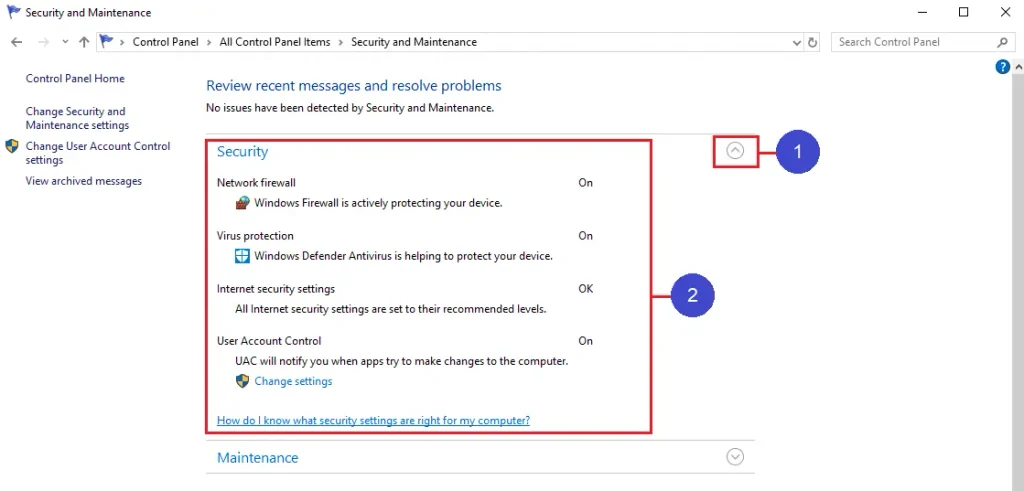
Check your Firewall and Security Software

Security or network restrictions can also cause other update-related problems, including QuickBooks Error 15215. Before changing any security settings, check whether QuickBooks is being blocked:

  • Open your firewall or antivirus program.
  • Look for its blocked apps, allowed apps, or exceptions section.
  • Check whether QuickBooks or its update components are being blocked.
  • If QuickBooks is blocked, follow the security software’s instructions to allow it.
  • Save the changes and restart QuickBooks.
  • Try running the update again.

If you’re using a third-party security program, check its official support documentation for instructions. If QuickBooks Error 15240 continues after QuickBooks is allowed through the firewall, move to the next solution.

Method 5 – Check Windows Permissions for QuickBooks

If QuickBooks has internet access but still cannot install the update, Windows permissions may be preventing it from changing files in its installation folders. This is more common when QuickBooks was installed under a different Windows account or when folder permissions have been changed.
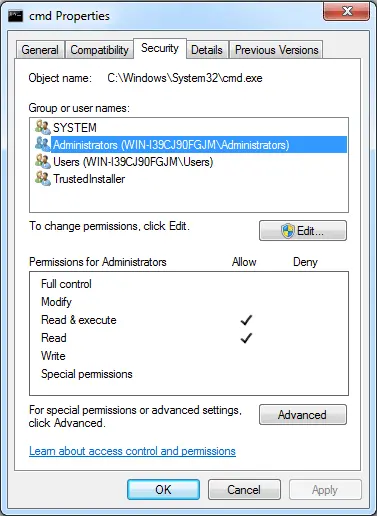
Check Windows Permissions for QuickBooks

Before modifying permissions, make sure QuickBooks is closed and try these steps:

  • Open File Explorer and go to the folder where QuickBooks is installed.
  • Right-click the QuickBooks installation folder and select Properties.
  • Open the Security tab and review the permissions for your Windows user account.
  • Make sure your account has the permissions required to access and modify the folder.
  • Select Apply and then OK if you make any legitimate permission changes.
  • Reopen QuickBooks and try the update again.

Method 6 – Repair QuickBooks with QuickBooks Tool Hub

If the basic checks haven’t fixed the QuickBooks error 15240, the problem may be inside the QuickBooks program itself. Damaged or temporarily stuck program components can interfere with updates.

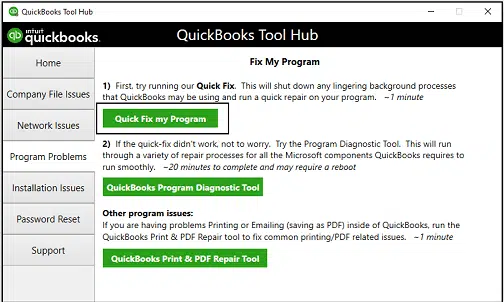
Intuit provides QuickBooks Tool Hub to help diagnose and repair several common QuickBooks Desktop problems. Its Quick Fix My Program tool is a good next step before considering a complete reinstall.
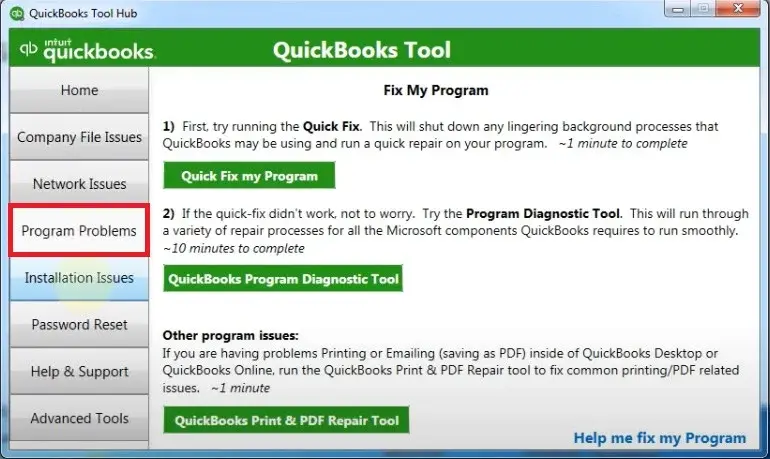
  • Close your QuickBooks Desktop.
  • Open QuickBooks Tool Hub on your computer. If you don’t have it installed, download it from Intuit’s official QuickBooks support site.
  • Select Program Problems from the left menu.
quickbooks-program-problems
  • Choose Quick Fix my Program.
Run-Quick-Fix-My-Program
  • Let the tool finish repairing the QuickBooks program.
  • Open QuickBooks Desktop again and try downloading the update.

If QuickBooks Error 15240 still appears after using Quick Fix my Program, you may also try the QuickBooks Refresher Tool to fix certain program-related issues. If the problem continues, move on to the next troubleshooting method.

Method 7 – Check the QuickBooks Digital Signature

If QuickBooks still can not complete the update, you should check the digital signature on the QuickBooks executable. Windows uses digital signatures to verify the publisher of a file and whether it has been modified. You can check it without changing anything:

  • Close QuickBooks Desktop.
  • Open File Explorer and go to the folder where QuickBooks is installed.
  • Find QBW32.exe and right-click it.
  • Select Properties, then open the Digital Signatures tab.
  • Select the signature listed there and click Details.
  • Check whether Windows reports that the digital signature is valid.

If Windows reports a problem with the signature, don’t download a certificate from an unknown website or replace system files manually. Instead, use an official QuickBooks repair or installation method.

If the digital signature is valid and Error 15240 continues, move on to repairing the QuickBooks installation.

Method 8 – Repair the QuickBooks Installation

If you are still facing the QuickBooks error 15240, repairing the installation can be a better option than immediately uninstalling the entire program. Before you begin, save your work and close QuickBooks.

  • Press Windows + R to open the Run window.
  • Type appwiz.cpl and press Enter.
  • Find QuickBooks Desktop in the list of installed programs.
  • Select QuickBooks and choose Uninstall/Change.
  • When the QuickBooks installation window appears, select the Repair option if it is available.
  • Follow the instructions shown on the screen and allow the repair to finish.
  • Restart your computer once the process is complete.
  • Open QuickBooks and try installing the update again.

If the repair doesn’t resolve Error 15240, a QuickBooks Clean Install Tool may help you perform a cleaner reinstallation. However, this should be kept as a later troubleshooting step.

Method 9 – Reinstall the QuickBooks Program

A fresh installation can replace damaged or missing program files. Before uninstalling QuickBooks, make sure you have a recent backup of your company files and that you have your QuickBooks license and product information available.

  • Close QuickBooks Desktop.
  • Open Windows Settings and click on Apps, then select Installed apps.
  • Find QuickBooks Desktop and select Uninstall.
  • Follow the on-screen instructions to remove the program.
  • Download the appropriate QuickBooks Desktop installer from an official Intuit source.
  • If you need help getting the installation files, follow our guide to Download QuickBooks Desktop. After downloading the installer, you can follow our complete instructions to Install QuickBooks Desktop.
  • Install QuickBooks again and complete the activation process.
  • Open your company file and try downloading the latest payroll or QuickBooks update.

Still Seeing QuickBooks Error 15240? Here’s What to Check

If QuickBooks Error 15240 is still showing after you’ve worked through the fixes above, there may be an issue with the QuickBooks update components rather than the basic settings on your computer.

Before making more changes, check these points:

If the problem appears to be related specifically to the QuickBooks update service or update files, you may also encounter related errors such as QuickBooks Error 15241, Error 15243, or QuickBooks Delivery Server Down Error.

  • Reset the QuickBooks update: If the update files are stuck or incomplete, use the Reset Update option and try downloading the update again.
  • Check QuickBooks File Copy Service: Make sure the QuickBooks File Copy Service (FCS) isn’t disabled, as it can be involved in the update process. If the service is not working correctly, see our guide on WDDM Service Not Running in QuickBooks for related service troubleshooting.
  • Look for missing update components: Damaged or missing files in the QuickBooks update components folder can prevent a new update from installing.
  • Review the digital signature: If QuickBooks cannot verify the signature of an update file, the installation may fail.
  • Repair or reinstall QuickBooks: If the program itself is damaged, repairing the installation or reinstalling QuickBooks may be necessary.

Simple Ways to Prevent QuickBooks Update Issues

Once you have fixed the QuickBooks update error 15240, here are some habits that can help you prevent this fatal error code from recurring in the future.

  • Keep QuickBooks updated: Install available QuickBooks Desktop updates regularly instead of waiting until an update becomes necessary.
  • Keep Windows up to date: Outdated or damaged Windows components can sometimes interfere with QuickBooks updates.
  • Use a reliable internet connection: Make sure your connection is stable when downloading payroll or product updates.
  • Check firewall settings: Make sure your firewall or security software isn’t blocking QuickBooks or its update components.
  • Don’t ignore repeated update failures: If an update keeps failing, troubleshoot the cause instead of repeatedly attempting the same installation.
  • Use QuickBooks Tool Hub when needed: Intuit recommends Quick Fix my Program for certain update-related problems and program issues.
  • Take regular backups of your company file: Having a recent backup gives you an extra layer of protection before major repairs or a QuickBooks reinstallation.

Conclusion!

The QuickBooks error 15240 can stop your payroll or QuickBooks program from completing, but it can often be fixed with a few practical checks. You can review the permissions, check date and time settings, internet connection, and security software before moving on to program repair or reinstallation.

If the error continues after trying these solutions, don’t make unnecessary changes to your system. Contact a Data Service Team at +1(888)-718-7888 qualified professional to identify the underlying problem and get the update working again.

Frequently Asked Questions (FAQ’s)

QuickBooks Error 15240 usually appears when QuickBooks Desktop cannot complete a payroll or software update. Permissions, security software, update files, or problems with the QuickBooks installation can prevent the update from finishing.

Yes, if QuickBooks doesn’t have the permissions it needs to access or modify its program files, the update may fail. Running QuickBooks as an administrator can help determine whether permissions are causing the problem.

Yes, A firewall or antivirus program may interfere with QuickBooks’ connection to its update servers or block files required during the update. Check your security software’s settings and make sure QuickBooks isn’t being blocked.

They can; security or connection settings that prevent QuickBooks from establishing a trusted connection with its update services may interfere with the update process. Check these settings before making major changes to your system.

Open QuickBooks Desktop and look for the available update option under the Help menu. Download and install the latest update, then restart QuickBooks. If the update continues to fail with Error 15240, work through the troubleshooting methods in this guide.

It can, because error 15240 may occur during payroll updates, you may be unable to download and install the latest payroll tax table until the underlying update problem is resolved.

Yes, you can fix this problem by giving full permissions, because insufficient Windows permissions are preventing the update from completing. Close QuickBooks, right-click its icon, select Run as administrator, and then try the update again.

If the error continues after trying all the above-mentioned solutions, start repairing or reinstalling QuickBooks. If you’re still unable to update, contact QuickBooks support or a qualified professional so they can identify the specific issue without risking your company data.

About The Author

Steven Moody

Steven Moody is a bookkeeping and payroll specialist dedicated to helping businesses maintain accurate financial records and efficient payroll operations. His expertise includes payroll management, tax compliance, bookkeeping solutions, and financial reporting. Steven regularly shares insights on accounting best practices and business finance strategies. Outside of work, he enjoys traveling, exploring new places, and keeping up with the latest developments in business technology.

Steven Moody

QuickBooks Error

QuickBooks Fatal Error: Why It Happens and How to Fix It

Read More
QuickBooks

Download QuickBooks Desktop: Everything You Need to Know

Read More
QuickBooks

QuickBooks Online New Features & Updates in 2026: What to Know

Read More
QuickBooks Error

QuickBooks Error 324: Fix Bank Account Connection Problems

Read More
QuickBooks Error

QuickBooks Error 40001: How to Fix Payroll Update Issues

Read More
