If QuickBooks Desktop is not opening, your company file is giving an error, or you are having trouble with installation, you may not need a separate tool for every problem. QuickBooks Tool Hub brings several troubleshooting utilities together in one application.
Instead of searching for individual repair tools, you can open Tool Hub, choose the section that matches your problem, and run the appropriate utility. It can help with company file, network, program, installation, printing, PDF, and certain password-related issues.
In this guide, you’ll learn how to download QuickBooks Tool Hub 1.6.0.8, install it on Windows 11, choose the right troubleshooting tool, and handle some common problems when Tool Hub itself doesn’t work.
QuickBooks Tool Hub is a troubleshooting application for QuickBooks issues. Tool Hub puts several commonly used troubleshooting options in one application.
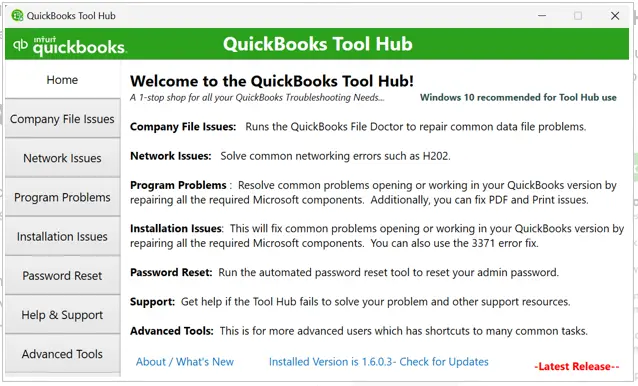
The available sections are organized according to the type of problem you’re trying to resolve. For example, company-file issues have their own section, while network, program, and installation problems are handled separately.
This makes Tool Hub useful when you’re not sure which QuickBooks repair utility you need. You can identify the problem first and then choose the corresponding option rather than running unrelated tools.
Intuit recommends using QuickBooks Tool Hub on Windows 11 (64-bit) for the best experience. Before starting your QuickBooks Tool Hub free download, make sure your computer is ready:
To download QuickBooks Tool Hub 1.6.0.8, use the official Intuit QuickBooks Tool Hub download link rather than an unfamiliar third-party website.
Before downloading and installing the Tool Hub, close QuickBooks Desktop if it is currently open.
This prevents the QuickBooks program from interfering with the troubleshooting tool installation.
Open Intuit’s official QuickBooks support page for Tool Hub. Look for the section that provides the Tool Hub download.
Avoid clicking download links from unfamiliar websites, especially if they offer a different or older version of the installer.
Select the QuickBooks Tool Hub download option to start downloading the installer.
Your browser may ask where you want to save the file. If it does, choose a location that is easy to access.
Save the downloaded installer in a convenient location, such as your Downloads folder or Windows desktop.
Keeping the file somewhere easy to find will make the installation process simpler.
After the download finishes, look for the file named: QuickBooksToolHub.exe
This is the installer you will use in the next step.
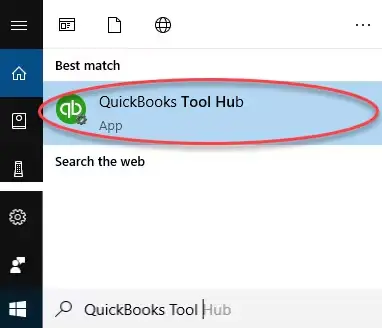
If you don’t see the installer in your Downloads folder, use Windows Search and enter: QuickBooksToolHub.
This can help you locate the downloaded installer if your browser saved it somewhere else.
Once you’ve located QuickBooksToolHub.exe, you’re ready to move to the next step: installing QuickBooks Tool Hub 1.6.0.8.
Once you have completed the QuickBooks Tool Hub Windows 11 download, installing the tool is straightforward. Make sure QuickBooks Desktop is closed before you begin.
Go to the location where you saved the downloaded file. The installer should be named QuickBooksToolHub.exe.
If you can’t find it, you can search your Windows computer for QuickBooksToolHub. Intuit recommends this method when the downloaded file is not easy to locate.
Double-click QuickBooksToolHub.exe to start the installation.
If Windows displays a security message, make sure you downloaded the installer from the official Intuit source before continuing.
The QuickBooks Tool Hub setup window will appear. Follow the on-screen instructions to continue with the installation.
When prompted, review and agree to the terms and conditions.
Wait for the installation to finish. Once the setup is complete, you can close the installation window.
Find the QuickBooks Tool Hub icon on your Windows desktop and double-click it to open the application.
After Tool Hub opens, select the Home tab to check the installed version.
Once QuickBooks Tool Hub is installed, you can use its different tabs according to the problem you are facing. Each tab focuses on a particular type of QuickBooks Desktop issue, so you can go directly to the relevant troubleshooting option instead of trying different tools one by one.
If QuickBooks cannot open a company file or reports a company-file error, start with the Company File Issues section. Depending on the problem, you can try Quick Fix my File or QuickBooks File Doctor.
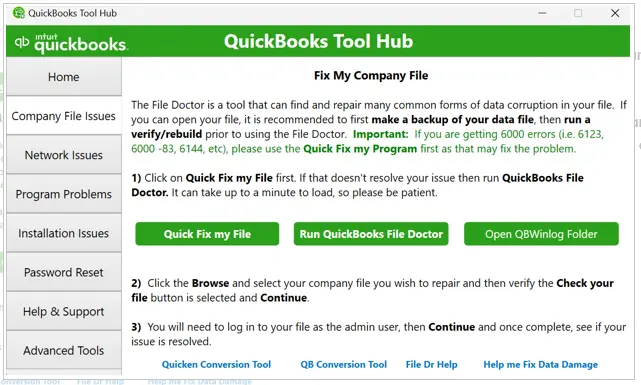
You’ll find tools such as Quick Fix my File and QuickBooks File Doctor here. Quick Fix my File is a good place to start with common file problems, while File Doctor can help diagnose certain company file and network-related issues.
Tip: Before troubleshooting a company file with File Doctor or other repair utilities, keep a recent backup of the company file. This gives you a recovery option if additional data-repair steps are required.
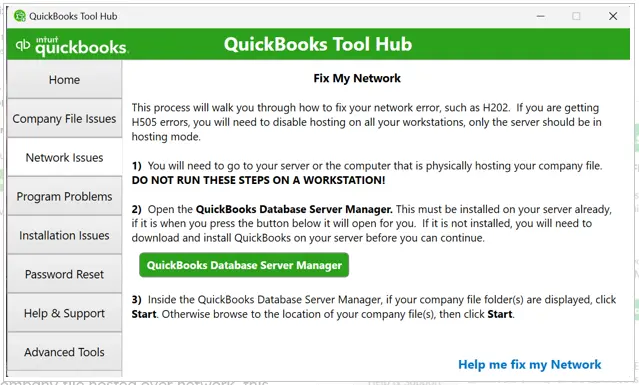
When QuickBooks cannot connect to a company file stored on another computer, go to Network Issues. This section is useful for multi-user connection problems, including Error H202, Error H303 or Error H505. Make sure you run the network tools from the computer hosting the company file.
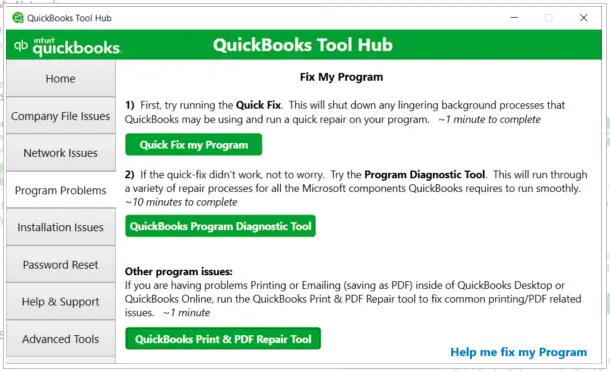
If QuickBooks is freezing, crashing on launch, or showing that QuickBooks has stopped working, the Program Problems tab is a good place to start. Quick Fix My Program closes background QuickBooks processes and helps restart QuickBooks cleanly. The Print & PDF Repair Tool is designed to troubleshoot supported issues where QuickBooks cannot print or create PDF files.
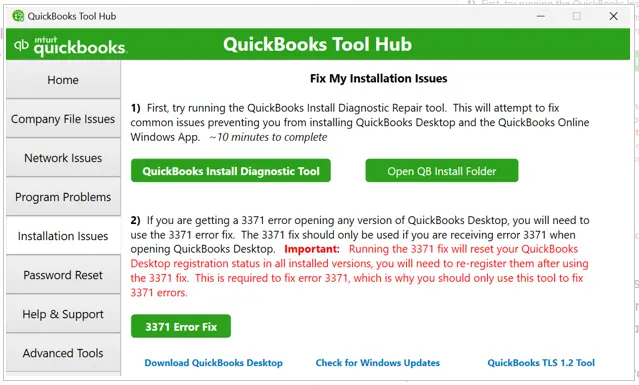
If you encounter problems while installing, updating, repairing, or uninstalling QuickBooks Desktop, use the Installation Issues tab. It can help troubleshoot installation errors such as 1935 and 1904 and certain update-related problems. The QuickBooks Install Diagnostic Tool can help identify and repair issues involving Microsoft components that QuickBooks depends on, including .NET Framework and C++ components. If standard installation troubleshooting does not resolve the problem, the QuickBooks Clean Install Tool can remove QuickBooks installation files so you can perform a fresh installation.
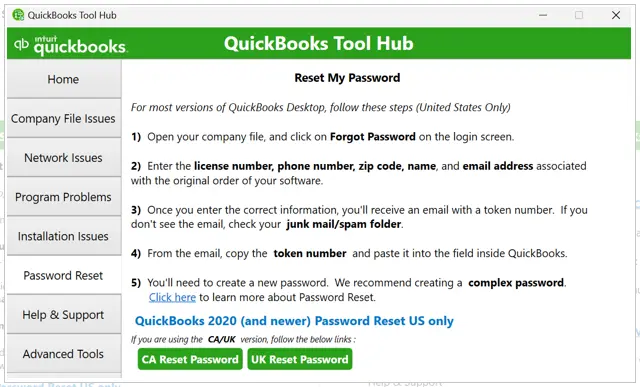
If you have forgotten a supported QuickBooks Desktop administrator password, open the Password Reset tab. Follow the instructions provided by Tool Hub and enter the required information to complete the reset.
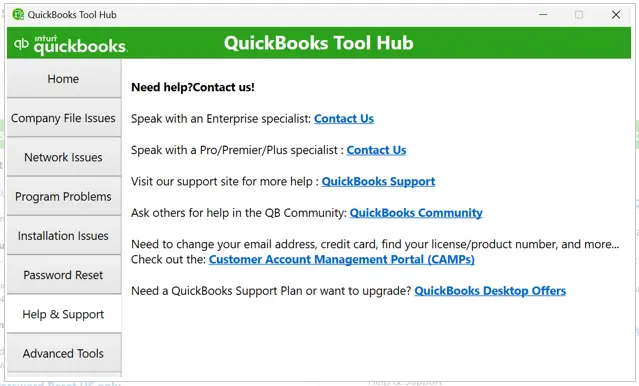
When the available troubleshooting tools do not solve the problem, the Help & Support tab can point you toward additional resources. You can use it to find support options for QuickBooks Desktop or Tool Hub.
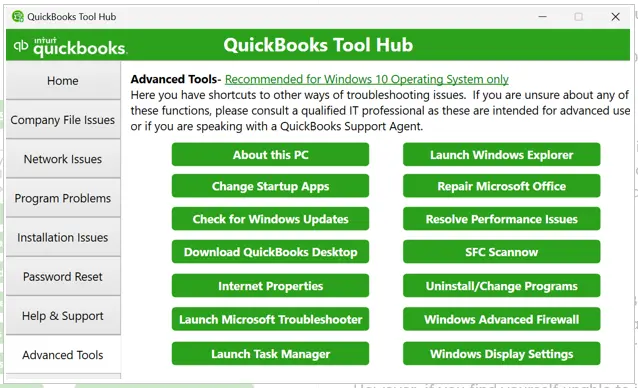
The Advanced Tools tab provides shortcuts to several Windows settings that can be useful for deeper troubleshooting. Most users should first try the regular Tool Hub sections and use these options only when additional Windows-level troubleshooting is needed.
Note: If QuickBooks runs slowly or becomes unresponsive, the QuickBooks Refresher Tool can help refresh background processes and restore smooth performance without affecting your company file.
If you’re looking to fix common problems with QuickBooks Tool Hub, the appropriate troubleshooting option depends on the QuickBooks Desktop error or symptom. After completing the QuickBooks Tool Hub 1.6.0.8 download, open Tool Hub and select the section that matches your problem.
If QuickBooks Tool Hub won’t open, install, or run a troubleshooting utility, first identify where the problem occurs.
Try these solutions based on the problem you’re seeing:
Search Windows for QuickBooks Tool Hub and open it from the search results. If it still doesn’t launch, make sure the installation completed successfully and that you’re using the latest available version.
If Windows or your browser blocks the installer, download the Tool Hub again using a different browser. If Microsoft Defender displays a warning, review the message before allowing the installer to run. Only proceed when you have obtained the installer from the official Intuit source.
Some tools are downloaded in the background after you select them. The download can take 2–3 minutes, so keep Tool Hub open until the process finishes.
Don’t repeatedly run different tools at random. Return to the Tool Hub section that matches the specific error, then follow the troubleshooting instructions for that issue.
If Tool Hub doesn’t resolve the problem, Intuit recommends additional troubleshooting, such as checking whether the issue is with QuickBooks Desktop itself or the company file and, where appropriate, running the QuickBooks Install Diagnostic Tool.
QuickBooks Tool Hub 1.6.0.8 brings several troubleshooting utilities into one convenient application. It can help QuickBooks Desktop users address supported company-file, network, program, installation, PDF, and printing problems without searching for separate tools.
For the best experience, download QuickBooks Tool Hub from the official Intuit source and choose the troubleshooting option that matches your specific problem. If Tool Hub does not resolve the issue, you can get in touch with the Data Service Team experts for better assistance at +1(888)-718-7888.
QuickBooks Tool Hub is an Intuit troubleshooting application for QuickBooks Desktop. It brings several utilities together to help with supported company-file, network, program, installation, PDF, printing, and password-related problems.
After installation, look for the QuickBooks Tool Hub shortcut on your Windows desktop. If you don’t see it, use Windows Search and type QuickBooks Tool Hub to locate and open the application.
Open QuickBooks Tool Hub and identify the section that matches your problem. For example, use Company File Issues for supported company-file problems, Network Issues for certain multi-user problems, or Program Problems when QuickBooks freezes or stops responding.
Open Tool Hub and select Company File Issues. Choose QuickBooks File Doctor, select the appropriate company file, and follow the on-screen instructions. The tool can help diagnose and repair certain supported company-file and network-related problems.
Start with the Company File Issues section. Depending on the problem, you can use Quick Fix My File or QuickBooks File Doctor. Choose the option that best matches the company file issue and allow the tool to complete its diagnosis or repair.
Yes. The Installation Issues section provides troubleshooting options for certain QuickBooks Desktop installation, update, repair, and uninstall problems. It also provides access to the QuickBooks Install Diagnostic Tool for supported issues.
Open QuickBooks Tool Hub, select Program Problems, and choose Quick Fix my Program. The utility closes QuickBooks background processes and performs a quick repair. Once it finishes, try opening QuickBooks Desktop again.
For certain multi-user problems, open Network Issues in QuickBooks Tool Hub. If you’re troubleshooting an error such as H202, run the appropriate network troubleshooting option from the server computer and follow the instructions provided.
Open the Network Issues section and select the available network or database server troubleshooting option appropriate for your setup. QuickBooks Database Server Manager is used to manage the network service that allows other computers to access company files in multi-user environments.
First, search Windows for QuickBooks Tool Hub and try opening it from the search results. If it still doesn’t open, verify that the installation completed correctly and that you’re using the latest available version. You can also reinstall Tool Hub using the official Intuit installer.
Make sure you downloaded QuickBooksToolHub.exe from an official Intuit source. If the installer is blocked, check the Windows security message and follow Intuit’s recommended instructions. You can also try downloading the installer again using another browser.
Download the latest QuickBooks Tool Hub installer from the official Intuit website and install it on your Windows computer. To check your current version, open Tool Hub and look at the Home tab. Intuit currently lists version 1.6.0.8 in its support documentation.
QuickBooks Tool Hub is provided by Intuit as a troubleshooting utility for QuickBooks Desktop. When looking for a QuickBooks Tool Hub free download, use the official Intuit source rather than an unfamiliar third-party website to avoid outdated or modified installers.
QuickBooks Tool Hub requires you to use the server computer because the network troubleshooting tools are designed to check issues involving the computer that hosts the QuickBooks company file. Running these tools from the server helps identify and troubleshoot network and multi-user connection problems between the host computer and workstations.
Some QuickBooks Tool Hub troubleshooting tools are downloaded in the background after you select them. The process can take around 2–3 minutes, depending on your internet connection and system. Keep QuickBooks Tool Hub open and allow the download to finish before closing the application.

Get Free Consultation for QuickBooks Upgrade
(2021, 2022, 2023)


