
Have you recently hired a new employee and need to Add Employee to QuickBooks Payroll? Setting up a new employee is usually straightforward, but entering the right information from the start is important to avoid payroll mistakes later. You’ll need details such as the employee’s name, contact information, Social Security number, hire date, tax information, and pay details. Direct deposit information may also be needed if you plan to pay the employee electronically.
Whether you use QuickBooks Online Payroll or QuickBooks Desktop Payroll, the process to Add Employee to QuickBooks Payroll is slightly different. In this guide, we’ll walk you through the process step by step.
Before you start, it’s a good idea to have the employee’s information ready. This makes the setup easier and helps you avoid entering incorrect payroll details. You may need the following details:
The information you need can vary depending on your QuickBooks Payroll service, so keep the employee’s documents available before you begin.
If you want to Add Employee to QuickBooks Payroll, the steps depend on whether you’re using QuickBooks Online Payroll or QuickBooks Desktop Payroll. If you encounter problems while setting up or processing payroll, see our QuickBooks Online Payroll Not Working guide for additional troubleshooting steps. Before you begin, keep the employee’s personal information, tax details, and pay information ready. This will make the setup easier and help you avoid common payroll errors.
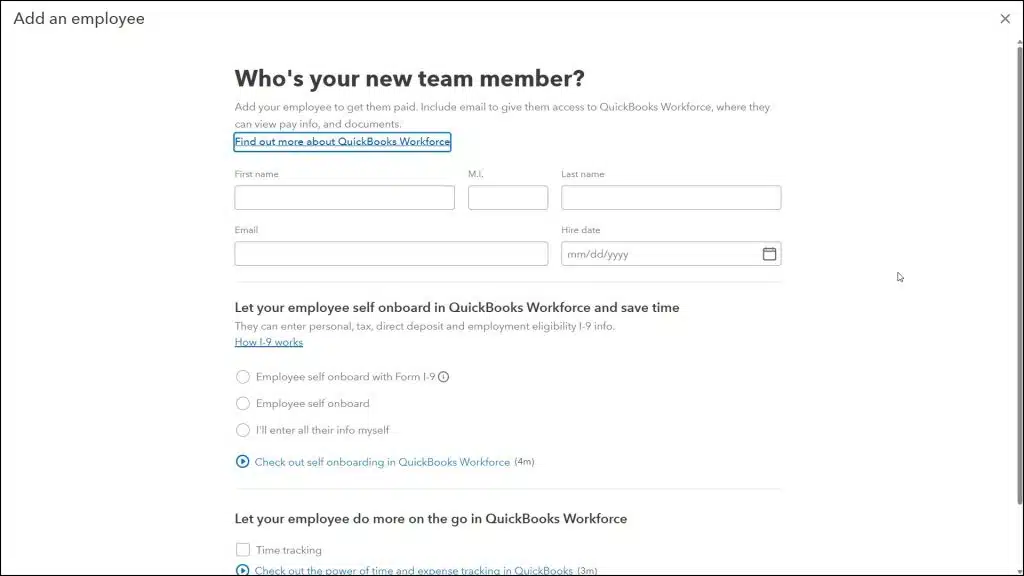
Before processing the first paycheck, make sure your payroll information and tax updates are current. If a payroll update fails, see our QuickBooks Payroll Update Not Working guide.
You can also use Quick add if you prefer to Add Employee to QuickBooks Payroll yourself instead of having the employee complete their own details. If you use a payroll service that includes additional payroll processing options, you can also review QuickBooks Assisted Payroll to understand how the service works.
If you’re using QuickBooks Desktop Payroll, you can add the employee directly from the Employee Center.
Once saved, the new employee will appear in your Employees list and can be included in your next payroll run.
If you want to Add Employee to QuickBooks Payroll and pay the new employee by direct deposit, you’ll need to set up their banking information in QuickBooks Payroll.
If your QuickBooks Payroll setup allows employees to enter their own information, you can also invite the employee to complete their direct deposit details through QuickBooks Workforce.
Yes, QuickBooks Payroll allows you to invite employees to provide some of their own information through QuickBooks Workforce, depending on your subscription. When you Add Employee to QuickBooks Payroll, this option can save time and reduce the amount of information you need to enter manually.
During employee onboarding, you can invite the new hire to complete the required details. They may be able to provide. The employee may be able to provide information such as:
After the employee completes the information, review their profile before processing Payroll to make sure you successfully Add Employee to QuickBooks Payroll with the correct details. Make sure their pay type, pay rate, tax information, and other payroll details are correct.
If you are bringing back a former employee, you may not need to create a new employee profile from scratch. QuickBooks workforce offers a Rehire option in eligible subscriptions, allowing you to select an existing employee and update their information for the new employment period. Here’s how to rehire an employee in QuickBooks Online Payroll:
Once you’ve finished, open the employee’s profile and make sure their information is accurate before including them in your next payroll run.
The steps may differ now and depending on your QuickBooks Desktop version. You need to check the former employee’s existing record before adding them again, and follow the workflow supported by your payroll service. Avoid creating a duplicate profile unnecessarily.
Important Note: Don’t consider the employee previous payroll details are still accurate. Review their current pay rate, tax forms, payment method, and employment dates. If you are rehiring them in the same tax year, so check their year-to-date payroll records to ensure wages and tax reporting remain accurate.
When you Add Employee to QuickBooks Payroll, you may need to complete additional tax setup if the employee lives or works in a different state. Before running Payroll, check whether your business needs to register for state payroll taxes or update its existing tax setup. Here’s what you should do:
Once you’ve completed the required setup, review the employee’s payroll information before processing their first paycheck.
Learning how to Add Employee to QuickBooks Payroll can make your payroll tasks easier. Whether you use QuickBooks Online Payroll or QuickBooks Desktop Payroll, make sure you enter the correct employee details, pay rate, and tax information. Always review everything before running Payroll to avoid common errors and ensure your new employee is ready for their first paycheck. If you are still looking for further assistance, you can contact the Data Service Team live technicians at +1(888)-718-7888.
First, go to All apps, click Payroll, then choose Employees in QuickBooks Online and select Add employee. Enter the required details and complete the onboarding process. In QuickBooks Desktop, go to Employees > Employee Center > New Employee.
You’ll generally need the employee’s name, address, Social Security number, hire date, tax information, pay rate, and pay schedule. Bank details are also needed if you plan to use direct deposit.
Yes. Depending on your subscription, you can invite employees to enter their tax and banking information through QuickBooks Workforce. Review their details before running Payroll.
Open the employee profile and find the direct deposit or payment method settings. Enter the required bank details, complete any necessary authorization steps, and save the information. The exact process depends on your QuickBooks Payroll version.
Open the employee profile, select the relevant information section, and make the necessary changes. Save the updates and check that the employee’s payroll details are correct.
Employee limits and pricing can vary by QuickBooks Payroll subscription. Check your current plan details or contact QuickBooks Support to confirm the limit for your account.
Some QuickBooks Payroll services support importing employee information from compatible systems. The available options depend on your subscription and the source system. Review imported details and fill in any missing information before running Payroll.
Yes. You can generally add an employee without bank details if you plan to pay them using another supported payment method, such as a paper paycheck. Bank information is needed to set up direct deposit.
Open the employee’s profile and correct the information in the appropriate section. If the error affects an already processed paycheck or tax filing, you may need additional corrections. Contact a Data Service Team professional if you’re unsure what to do.
This may happen because of account permission issues, an inactive subscription, missing required information, or a technical problem. Check your account access, payroll subscription, and required fields. Also, make sure the employee doesn’t already have a profile.
You must check the employee name, hire date, pay rate, pay schedule, tax information, deductions, benefits, and payment method. Make sure all required onboarding details are complete and review the paycheck before submitting Payroll.




