🔥 BLACK FRIDAY & CYBER MONDAY MEGA SALE ✦ Get 70% OFF QuickBooks Products & Subscriptions ✦ 20% OFF Checks, Forms & Supplies ✦ LIMITED TIME OFFER! 🎉 ✦
QuickBooks-Error-15102
Summarize this blog post with :

QuickBooks error 15102 is a common update-related issue that can interrupt your QuickBooks Desktop and payroll tax table downloads. It usually appears when the software can’t access your shared download location, verify digital signatures, or obtain the required permissions to complete an update. This issue can also interrupt payroll tax table updates, preventing users from downloading the latest payroll tax information. If you are experiencing QuickBooks error 15102 when updating payroll, it is important to identify the underlying cause before attempting repairs. You can also review common causes and troubleshooting steps for QuickBooks payroll update problems if payroll downloads continue to fail.

In this detailed guide, you will explore the common causes and learn how to fix this error in Windows using practical, step-by-step troubleshooting.

How Does Error 15102 Interrupt QuickBooks Updates?

QuickBooks payroll update error 15102 can disrupt the update process by preventing QuickBooks Desktop from accessing or downloading the required update files. When this happens, users may face several difficulties, particularly while updating payroll or downloading the latest tax table.

Here are some common ways this error affects QuickBooks operations:

  • QuickBooks may fail to download the latest payroll tax table, leaving users unable to complete the update.
  • The application may stop downloading or installing available QuickBooks updates, causing the update process to become stuck.
  • An incorrect or inaccessible shared download folder can prevent QuickBooks from retrieving necessary update components.
  • Insufficient Windows permissions or security restrictions may interrupt the update process.
  • If payroll updates remain incomplete, users may need to resolve the issue before relying on the latest available payroll tax information.

What Triggers QuickBooks Error 15102 During Payroll Updates?

Multiple system, network, and application-related issues may contribute to this error. Similar update-related errors, such as QuickBooks Error 15276, can also interfere with the software update process. Understanding these causes can help you identify the problem and choose an appropriate solution.

Here are some common reasons behind the QuickBooks Error 15102 when updating payroll:

  • Incorrect Shared Download Location: If the configured download folder is incorrect or inaccessible, QuickBooks may fail to retrieve the required update files.
  • Insufficient Administrator Permissions: Running QuickBooks without the necessary Windows permissions can prevent the application from downloading or installing updates.
  • Damaged Update Components: Missing or damaged QuickBooks update files may interrupt the download process and cause update failures.
  • Firewall or Antivirus Restrictions: Security software may block QuickBooks from connecting to its update servers or accessing required files.
  • Disabled QuickBooks File Copy Service: If the File Copy Service (FCS) is disabled or not functioning correctly, QuickBooks may experience problems installing downloaded updates.
  • Digital Signature Verification Issues: QuickBooks may fail to verify the authenticity of downloaded update files, preventing successful installation.
  • Damaged QuickBooks Installation: Missing or corrupted installation components can interfere with software updates and payroll downloads.

What to Check Before Fixing QuickBooks Error 15102?

Before applying any troubleshooting method, perform these basic checks to avoid unnecessary changes to your QuickBooks settings.

  • Check Your Internet Connection: Make sure your computer has a stable internet connection to download QuickBooks updates.
  • Verify QuickBooks Version: Confirm that you are using a supported QuickBooks Desktop version.
  • Check Windows Permissions: Ensure you have access to an administrator account.
  • Review Available Backups: Create a backup of your company file before making significant changes.
  • Check Download Folder Access: Confirm that the shared download location is available and accessible.
  • Close Unnecessary Applications: Close QuickBooks and other unnecessary programs before performing repair operations.

Once these checks are complete, you can move on to the troubleshooting methods to resolve QuickBooks error 15102. If you encounter other QuickBooks update errors, such as Error 15103, you may need to troubleshoot the update process separately.

How to Fix QuickBooks Error 15102 in Windows?

If QuickBooks error 15102 continues to appear after completing the preliminary checks, you may need to troubleshoot the software, download settings, or Windows permissions. The right solution depends on what is preventing QuickBooks Desktop from downloading or installing the latest updates.

Follow the methods below in order to resolve QuickBooks Error 15102 when updating payroll.

Solution 1: Run QuickBooks Desktop as an Administrator

Insufficient Windows permissions can prevent QuickBooks from accessing the required update files or completing the download process. Running the application with administrator privileges can help resolve permission-related issues.

Follow these steps:
  • Close QuickBooks Desktop and make sure no company files are open.
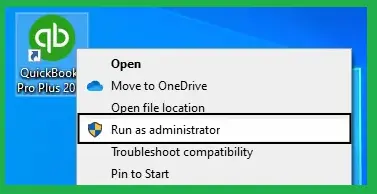
  • Locate the QuickBooks Desktop icon on your Windows desktop.
  • Right-click the icon and select Run as Administrator.
run-as-administrator
  • If the User Account Control (UAC) prompt appears, select Yes.
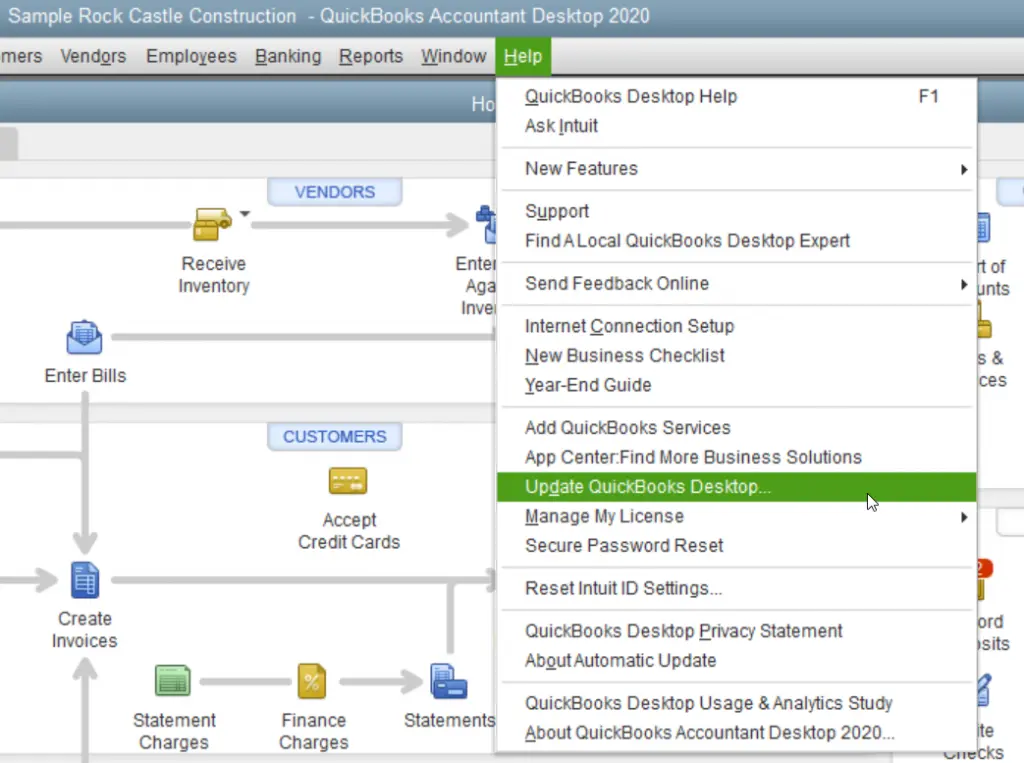
  • Once QuickBooks opens, navigate to the Help menu.
  • Select Update QuickBooks Desktop.
Update-QuickBooks-Desktop
  • Download the available updates and check whether the error appears again.

If the update completes successfully, reopen your company file and verify that QuickBooks is working correctly.

Solution 2: Verify the Shared Download Location

An incorrect or inaccessible shared download location is one of the commonly reported reasons behind QuickBooks error 15102.

To verify the download location:

  • Open QuickBooks Desktop.
  • Press F2 on your keyboard to open the Product Information window.
  • Note the location where QuickBooks is installed.
  • Close the Product Information window.
  • Navigate to Help and choose Update QuickBooks Desktop.
  • Open the Options tab.
  • Check the Download Location and Shared Download settings.
  • If Shared Download is enabled, verify that the selected folder is accessible and that the configured path is correct.
  • If the location is incorrect, select the appropriate accessible folder.
  • Save the changes and close the window.

After correcting the download location, try downloading the latest QuickBooks Desktop or payroll updates again.

Solution 3: Download the QuickBooks Updates in Single-User Mode

In certain multi-user or hosted environments, update-related file access restrictions can interfere with the QuickBooks update process. Switching to Single-User Mode may help eliminate these conflicts.

Follow these instructions:
  • Open QuickBooks Desktop.
  • Make sure all other users are logged out of the company file.
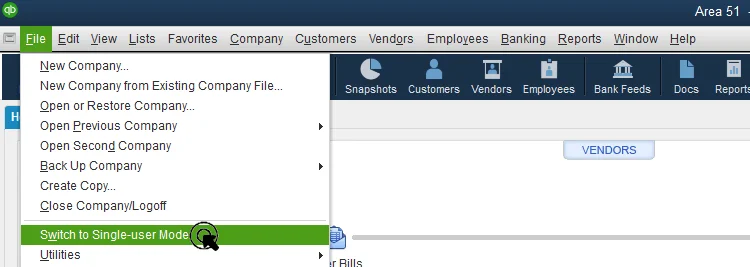
  • Select the File menu.
  • Choose Switch to Single-User Mode, if available.
Switching-to-the-Single-User-Mode
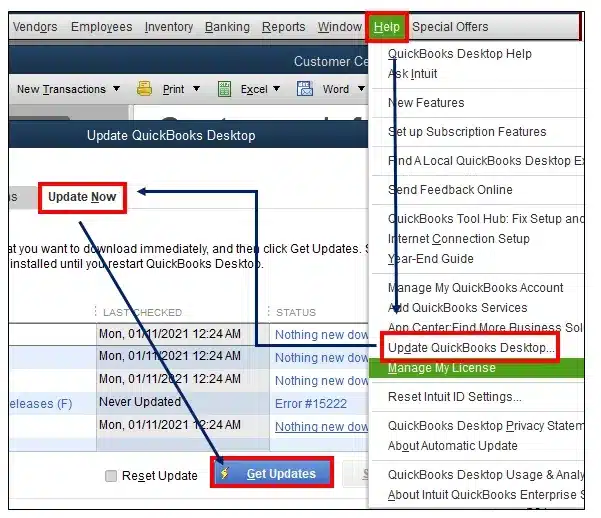
  • Once QuickBooks switches to Single-User Mode, open the Help menu.
  • Select Update QuickBooks Desktop.
  • Choose the available updates and select Get Updates.
get-update
  • Allow the download process to finish.

Check whether QuickBooks can now download the updates without displaying Error 15102.

Note: If you use a hosted or terminal-server environment, coordinate with your administrator before changing user-mode or update settings.

Solution 4: Run Quick Fix My Program Using QuickBooks Tool Hub

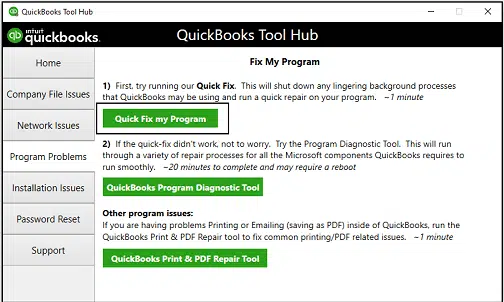
Damaged or malfunctioning QuickBooks program components can interfere with the update process. To fix this, use the Quick Fix My Program utility, which can help you with a quick repair.
Step 1: Download and Install QuickBooks Tool Hub

  • Close QuickBooks Desktop.
  • Visit Intuit’s official QuickBooks Tool Hub download page.
  • Download the latest available version.
  • Save the installation file in an easily accessible location.
  • Open the downloaded file and follow the installation instructions.
  • Accept the license agreement and complete the installation.
  • Launch QuickBooks Tool Hub.

Step 2: Run Quick Fix My Program

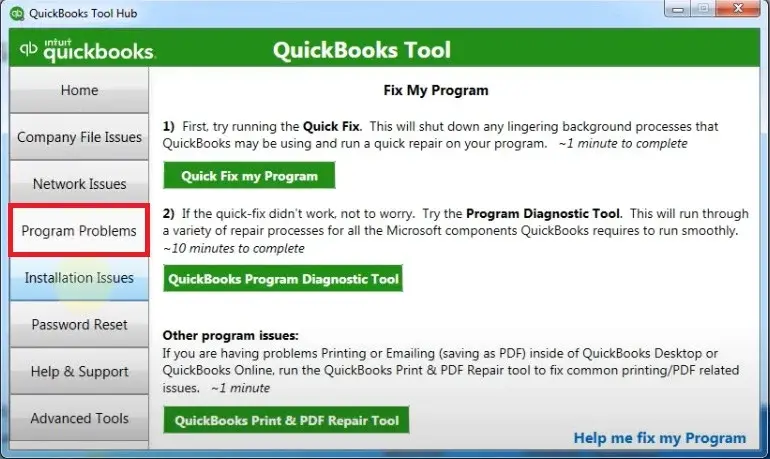
  • Open QuickBooks Tool Hub.
  • Select Program Problems.
quickbooks-program-problems
Quick-Fix-My-Program
  • Allow the utility to complete its repair process.
  • Reopen QuickBooks Desktop.
  • Try downloading the latest updates again.

This method can help resolve program-related issues that may contribute to QuickBooks Error 15102.

Solution 5: Install the Digital Signature Certificate

QuickBooks needs to verify the authenticity of its update files. If Windows cannot properly validate the digital signature of a required program file, the update process may fail.

You can check the digital signature certificate using these steps:

  • Close QuickBooks Desktop.
  • Open File Explorer.
  • Navigate to the QuickBooks installation folder.
  • Locate the QBW32.exe file.
  • Right-click the file and select Properties.
  • Open the Digital Signatures tab.
  • Select the Intuit signature, if listed.
  • Click Details.
  • Review the certificate information and verification status.

Solution 6: Repair QuickBooks Desktop Installation

If the previous methods do not resolve the issue, damaged or missing installation components may be preventing QuickBooks from completing updates. For additional installation troubleshooting, you can also use the QuickBooks Install Diagnostic Tool to identify and address certain installation-related problems.

Follow these steps:
  • Close QuickBooks Desktop and other running applications.
  • Open the Windows Start menu.
  • Search for Control Panel and open it.
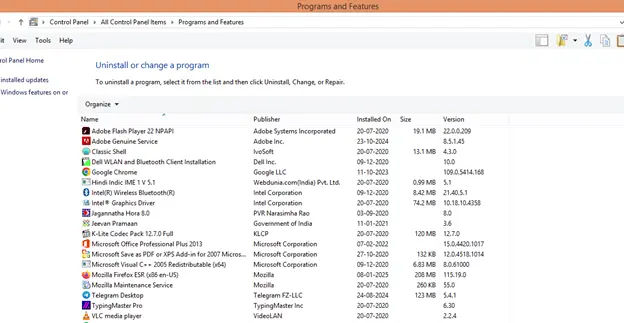
  • Select Programs and Features.
Programs-and-Features
  • Locate QuickBooks Desktop in the installed programs list.
  • Select QuickBooks Desktop and choose the available Change or Repair option.
  • Follow the on-screen instructions to complete the repair.
  • Restart your computer if prompted.
  • Open QuickBooks Desktop and try downloading the updates again.

The exact repair options may vary depending on your Windows version and QuickBooks installation.

Solution 7: Reinstall QuickBooks Desktop

If QuickBooks Error 15102 persists after repairing the installation, reinstalling the application may help resolve deeper installation-related problems.

Before proceeding, create a backup of your company file and keep your QuickBooks license and product information available.

  • Close QuickBooks Desktop.
  • Open the Windows Control Panel.
  • Select Programs and Features.
  • Locate QuickBooks Desktop.
  • Choose Uninstall and follow the on-screen instructions.
  • Restart your computer after uninstalling the application.
  • Download the appropriate installation package from an official Intuit source.
  • Reinstall QuickBooks Desktop using your license information.
  • Open your company file and verify that the application works correctly.
  • Download the latest available QuickBooks and payroll updates.

If you use a multi-user setup, consult your QuickBooks administrator before reinstalling the application.

How to Prevent QuickBooks Payroll Update Error 15102?

After resolving QuickBooks Error 15102, you should follow a few preventive practices to reduce the chances of encountering the same issue during future payroll updates.

Here are some useful tips:

  • You should regularly install the available QuickBooks Desktop updates to maintain compatibility and fix known software issues.
  • Make sure the configured download folder is correct, accessible, and available whenever you download payroll updates.
  • Run QuickBooks Desktop with the required Windows permissions to prevent access-related update interruptions.
  • Ensure your internet connection is reliable before downloading QuickBooks or payroll tax table updates.
  • Make sure your security software does not unnecessarily block legitimate QuickBooks update processes. Only configure trusted, official QuickBooks exceptions.
  • If QuickBooks uses a mapped network drive, confirm that the drive remains connected and accessible.
  • Create regular company file backups to protect your accounting data before performing major software maintenance.
  • Check for available payroll tax table updates through QuickBooks Desktop to keep your payroll information current. If payroll updates continue to fail, check whether similar payroll update errors, such as QuickBooks Error PS033, are affecting your software.

Make QuickBooks Work Smarter for Your Business

Spend less time managing data and more time growing your business. Whether you need help setting up QuickBooks, cleaning up your books, reconciling accounts, or resolving errors, our team is here to make accounting easier. Get quick solutions that save time, improve accuracy, and keep your business finances on track.

OR Call Us

Conclusion

Hopefully, the solutions discussed in this guide will help you fix the QuickBooks error 15102 and download the latest payroll updates without any interruptions. Whether the issue is caused by an incorrect shared download location, insufficient permissions, or damaged program files, following the right troubleshooting steps can help resolve it. Make sure to keep QuickBooks Desktop updated and check your download settings regularly to prevent this error from occurring again.

If you are still looking for professional assistance, you can reach out to the Data Service Team live experts at +1(888)-718-7888 for further help.

Frequently Asked Questions (FAQ’s)

QuickBooks Error 15102 usually appears when the software cannot access the shared download location or download the required update files. It can also occur due to insufficient Windows permissions, damaged update components, or firewall restrictions.

To fix QuickBooks Error 15102 in Windows 11, try running QuickBooks as an administrator. You can also check the shared download location, use Quick Fix My Program through QuickBooks Tool Hub, and repair the QuickBooks installation if necessary.

First, check your internet connection and shared download location. Then, run QuickBooks as an administrator and try downloading the payroll tax table update again. If the error continues, use QuickBooks Tool Hub to repair the program.

Yes, an incorrect or inaccessible shared download location can prevent QuickBooks from finding and downloading the required update files. Open the Update QuickBooks window and check whether the download folder is correct and accessible.

Yes, both errors belong to the QuickBooks 15XXX update error series and can interrupt software or payroll updates. However, their causes may differ, so each error requires appropriate troubleshooting.

QuickBooks Error 15102 mainly interrupts the payroll update and tax table download process. If the latest tax table is not installed, your payroll calculations may use outdated tax information. Resolve the error and install the latest applicable payroll update before processing payroll.

No additional cost is generally required if you fix the error yourself using QuickBooks settings, Windows administrator permissions, or the free QuickBooks Tool Hub. However, professional technical support may involve additional charges.

If QuickBooks Error 15102 continues to appear, check your installation files, firewall settings, and digital signature verification. You can also repair or reinstall QuickBooks Desktop using official Intuit installation files.

About The Author

Steven Moody

Steven Moody is a bookkeeping and payroll specialist dedicated to helping businesses maintain accurate financial records and efficient payroll operations. His expertise includes payroll management, tax compliance, bookkeeping solutions, and financial reporting. Steven regularly shares insights on accounting best practices and business finance strategies. Outside of work, he enjoys traveling, exploring new places, and keeping up with the latest developments in business technology.

Steven Moody

QuickBooks Error How to

QuickBooks Error 3371: 7 Ways to Fix Status Code -11118

Read More
QuickBooks Error How to

QuickBooks Black and White Screen: Here’s How to Fix It

Read More
QuickBooks Payroll

QuickBooks Payroll EIN Mismatch: How to Correct Incorrect EIN

Read More
QuickBooks Error How to

QuickBooks Error H202: How to Fix Server and Network Issues

Read More
QuickBooks Error How to

QuickBooks Error 12057: How to Fix Secure Connection Issues

Read More