QuickBooks-Error-PS036

Are you facing QuickBooks error PS036 in QuickBooks and is it affecting your payroll tasks? Do not worry! We will guide you to resolve this error with the detailed article below, which contains all the information you need to know. This error appears during updates or while preparing to use certain features. QuickBooks has established itself as a reliable tool for businesses of all sizes in the world of accounting software.

It is not immune to these errors that can disrupt workflow and create confusion like any software. Here, we will explore the causes of QuickBooks Error PS036, troubleshooting methods, and tips to prevent it from recurring. We aim to equip you with the knowledge needed to navigate and solve this issue with this guide.

What Does QuickBooks Error PS036 Mean?

QuickBooks Error PS036 occurs during the update process of QuickBooks Payroll. It indicates that there was an issue with the payroll service. This error appears when the software fails to download payroll updates due to various reasons, such as an outdated version of QuickBooks, internet connectivity problems, or corrupted files.
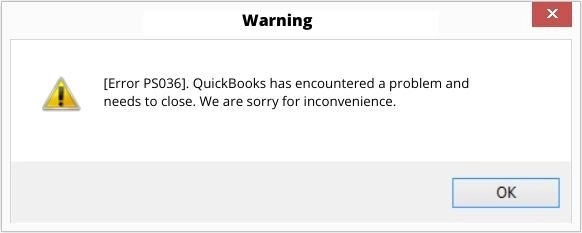
QuickBooks Error PS036

This error comes with a message: Error PS036: QuickBooks is having trouble verifying your payroll subscription. The PS036 error can hinder payroll processing and cause delays in employee payments & tax filings. QuickBooks error PS036 indicates QuickBooks is unable to verify your payroll subscription. Read this article to find quick fixes for this error.

Data Service Team Tip: Users should ensure their QuickBooks is updated to the new version and verify the integrity of the software installation to resolve this error.

List of Reasons Why QuickBooks Encounters PS036 Error

QuickBooks Error PS036 occurs when the software cannot check the payroll subscription or encounter configuration mismatches. The main causes include:

  • Your Payroll service plan has lapsed or is not validated by Intuit.
  • An invalid or incorrectly typed payroll services key was entered.
  • The Employer Identification Number or Payroll Service ID in your company file does not match the official Intuit payroll data.
  • When a user has more than one active payroll agreement that includes an inactive Direct Deposit agreement.
  • Running an outdated version of QuickBooks Desktop or a version not supported by your Windows operating system.
  • Corruption in payroll configuration files.
  • Corrupted elements within the QuickBooks company file.
  • Windows Firewall, Antivirus, or poor internet settings blocking QuickBooks from communicating with the Intuit service.

Related QuickBooks Payroll Error: Another payroll update issue users may encounter is QuickBooks Error PS033, which can occur when QuickBooks has trouble downloading or installing the latest payroll tax table updates. If the issue is related to payroll subscription verification or update configuration, users should identify the exact error code before applying troubleshooting steps.

What are the Primary Signs of QuickBooks Error PS036?

QuickBooks Error PS036 happens when payroll updates fail, blocking payments and tax submissions. This affects all QuickBooks versions, including Desktop. Here are the main signs of this error:

  • The software displays an error message: Error PS036: QuickBooks is having trouble verifying your payroll subscription. It stops the download of new payroll tax tables.
  • A pop-up alerts that QuickBooks cannot validate your payroll information or verify your subscription status.
  • The payroll services show as inactive or invalid even when you have an active and paid plan.
  • Pay checks can calculate incorrectly because you are unable to install the latest tax updates.
  • The program constantly asks you to register, activate, or enter your Employer Identification Number.
  • QuickBooks may crash or stop responding when attempting to send or process payroll.

Simple Methods to Troubleshoot QuickBooks Payroll Error PS036

QuickBooks Error PS036 indicates an issue verifying your payroll subscription or license. Verify your payroll subscription in the Employees menu to resolve it quickly. Ensure your EIN is correct under company details, and run the Verify Data tool. Go through the easy methods to resolve this payroll error in QuickBooks within a few minutes:

Method 1: Check QuickBooks Payroll Subscription

The first step is to check if your payroll subscription is active or not. An inactive/expired subscription can potentially lead to the PS036 error code in QuickBooks.

  • Shut down all your company documents and reboot your computer.
  • Launch QuickBooks, navigate to Employees.
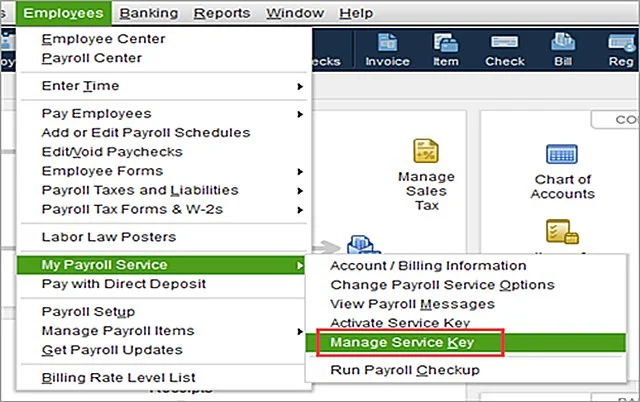
  • Choose My Payroll Service and then click on Manage Service Key.
  • Your Service Name & Status should appear accurate and should indicate Active.
  • Select Edit and check the service key number.
  • If it is wrong, input the correct service key.
  • Click Next and uncheck the box for Open Payroll Setup.
  • Select Finish.

Method 2: Register and Update QuickBooks Desktop

QuickBooks updates are one of the best choices to access some of the finest features. If you do not have the same, there will be a constant eruption of errors and technical glitches along with other issues. Users must ensure that the software has been updated with enhancements and the latest security. The steps given below can help in verifying your software registration:
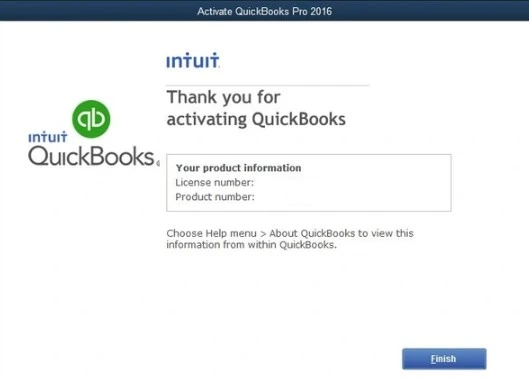
QuickBooks-registration
  • Press the F2 Keys on your keyboard to launch product information.
  • Give your confirmation if it indicates Activated next to the license number.
  • Get QuickBooks if there is no activated status from there.
  • Hit the activated QuickBooks desktop icon by clicking on the Help menu.

There is a turn-off update after registration as described below:
  • Shut down the QuickBooks app and company file.
  • Move to the Windows Start.
  • Look for QuickBooks Desktop.
  • Press Shift + F10 icon.
  • Click on the Run as Administrator icon.
  • Move your cursor towards the Help menu on the company file screen.
  • Click on Update QuickBooks Desktop.
  • Select the option icon and check mark all the options.
  • Save all the changes made.
  • Choose Reset Update option from the Update Now icon.
  • Move ahead with updates once this is all done.
  • Once you are done with the QuickBooks Desktop update, close and reopen it.
  • Click on Yes and accept the updates installation.
  • Restart your system once the QuickBooks installation part is complete.
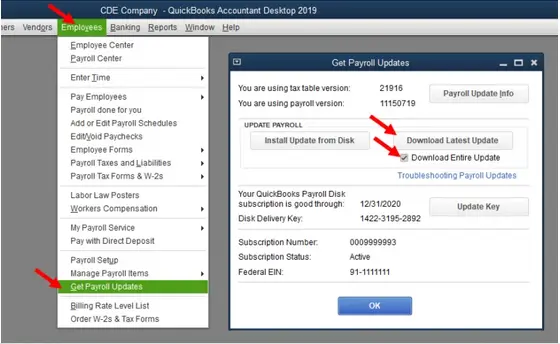
  • Download the latest payroll tax table to access the employee section.
  • Select the Get Payroll updates option.
Get Payroll Update
  • Click on the Download entire update icon.
  • Hit the update option and view the informational window.

Method 3: Add Defender exclusion and run Quick Fix my Program

  • Shut down your company file and exit QuickBooks Desktop.
  • Add an exclusion for Defender or disable Windows Defender antivirus protection.
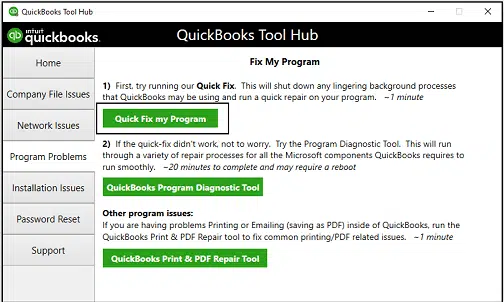
  • Click on Program Problems in the QuickBooks Tools Hub.
  • Choose Quick Fix my Program.
  • Restart QuickBooks and update it to the most recent version.
  • Download and install the newest tax table.

Method 4: Repair the Damaged Paysub.ini file

QuickBooks may unable to verify the payroll subscription when the Paysub.ini file becomes corrupted. Repair the file to refresh the payroll configuration data and regain proper validation.
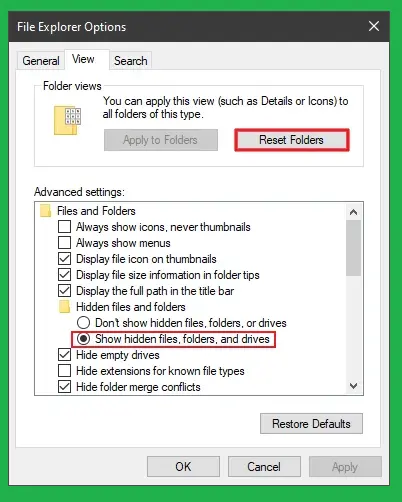
  • Go to My Computer and select Organize.
  • Pick a folder and perform a search.
  • Click on the View option.
  • Select Hidden Files and Folders.
  • Choose Show Hidden Files, Folders, and Drives.
Show hidden files
  • Once done, return to My Computer and enter Paysub.ini in the search box to locate the file.
  • Click on the file to access the rename option.
  • Change the .ini extension to .old in the Paysub files.

Data Service Team Tip: You need to follow the same procedure for each of the Paysub.ini files. Ensure you include additional letters or numbers in the filename to prevent duplication while performing this action. The system does not allow the use of identical file names.

Method 5: Clean Install QuickBooks Desktop

The installation of damaged program components can trigger payroll errors. Users need to perform a clean install to remove these corrupted files and install QuickBooks again. Clean install QB through the Clean Install Tool to fix error PS036 in QuickBooks Desktop.
Switch Windows to Selective Startup Mode

  • Take a backup of all the required files on an external storage device and install QuickBooks in startup mode.
  • Keep your license registration information to register the product again.
  • Press and hold Windows + R to open the Run window on your system.
  • Enter MSConfig in the Run window and select the Enter button.
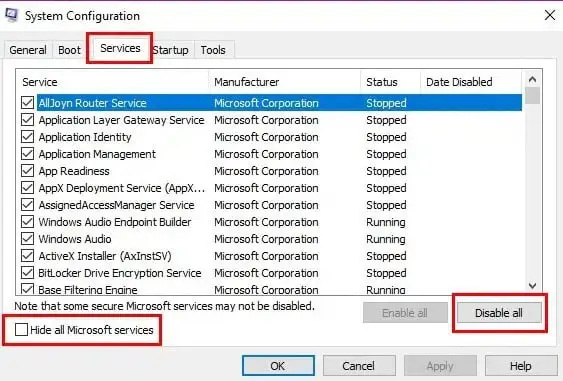
  • Select the Load System Services and Selective Startup options in the General tab.
  • Navigate to the Services tab and choose Hide all Microsoft Services option.
Hide-all-Microsoft-services
  • Click Disable all and uncheck the Hide all Microsoft Services option.
  • Ensure that the Windows Installer option is checked and then click OK.
  • Restart your Windows and it will enter selective startup mode.

Uninstall QuickBooks Desktop

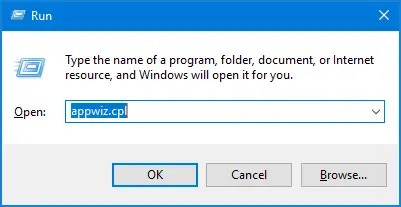
  • Press & hold the Windows+R keys to launch the Run dialog.
  • Enter appwiz.cpl.
Enter appwiz.cpl
  • Press Enter, and a window will appear displaying the list of installed applications.
  • Locate and select QuickBooks Desktop.
  • Click on the Uninstall/Change option.
  • Select Remove option and click on the Next button.
  • Restart your computer after QuickBooks has been uninstalled.

Reinstall QuickBooks Desktop

  • Get the setup file from the QuickBooks Product
  • Download page and insert the installation disk into the CD drive.
  • Run the QuickBooks.exe file to begin the installation process.
  • An instruction will appear on the screen and you must follow all the steps.
  • Enter the license registration information.
  • Move to Normal Startup Mode
  • Hit the Windows + R key to open the Run window and type MSConfig.
  • Click on the Enter tab and choose the Normal Startup mode across General tab.
  • Select OK and reboot your Windows.
  • Try to rerun the payroll update and check whether the QuickBooks error PS036 is fixed or not.

Method 6: Fix the Data Damage In Company File

The payroll update will not occur and will result in QuickBooks error PS036 when the company file is corrupted. Use the QuickBooks File Doctor tool from the QuickBooks Tool Hub to address the data corruption. Now, follow these steps:

  • Download the QuickBooks Tool Hub.
  • Navigate to the Company File Issues tab.
  • Click on Run QuickBooks File Doctor.
  • Once it opens, choose your company file from the list.
  • Use the browser to search for them in case you are unable to locate your company files.
  • Click on Check your file and select Continue.
  • Verify the QuickBooks admin credentials and click Next.
  • The scanning process may take some time based on the size of the file.
  • Return to QuickBooks and attempt to download the payroll update.
  • Check if the QuickBooks payroll error PS036 has been resolved once the scan is complete.

Method 7: Delete Entitlement Client File

  • Head to Microsoft’s Start menu.
  • Type Run in the search box and launch it.
  • Go to C:\ProgramData\Intuit\EntitlementClient\V8 and press Enter.
  • Enter C:\ProgramData\Intuit\EntitlementClient\V6 in case it does not show up.
  • Find the entitlementdatastore. ecml and right-click the file.
  • Select the Delete tab and click Yes to confirm.
  • Launch your QuickBooks and perform the on-screen steps to register it again.

Method 8: Update Incorrect Payroll Service Key

An incorrect service key can prevent payroll updates. Follow these instructions to replace it:

  • Obtain your service key using the Service Key Retrieval Tool or check your email for it.
  • Launch QuickBooks and navigate to Employees.
  • Choose My Payroll Service > Manage Service Key.
  • Click Remove to eliminate the incorrect key.
  • Click Add and input the correct service key.
  • Click Next and then OK when the Payroll Update notification appears.
  • Verify that the Service Status is Active and click OK.

Major Prerequisites to Fix QuickBooks Desktop Payroll Error PS036

QuickBooks Error PS036 signifies an issue with verification of the payroll subscription. Perform these essential steps to prepare the system and then implement troubleshooting solutions:
  • Create a Backup of Your Company File Always protect your financial information before making any changes.
  • Update QuickBooks Desktop – Make sure your software is on the most recent release to ensure compatibility.
  • Check Your Subscription Status – Verify that your payroll subscription is active and whether you are logged into your account or not.
  • Confirm Your Service Key – Ensure that your Payroll Service Key is correctly entered in QuickBooks.
Payroll Service Key Manage Access
  • Run as Administrator – Close the application and restart it with full administrative rights in Windows.
  • Activate TLS 1.2 – Go to Windows Internet Options and make sure TLS 1.2 is enabled for secure connections to Intuit servers.

Data Service Team Tip: This error typically appears when QuickBooks cannot confirm your active payroll service subscription, preventing you from processing payroll or accessing payroll features.

How Does QuickBooks Error PS036 Affect Your Payroll Tasks?

QuickBooks Error PS036 is a common payroll-related issue that occurs when there’s a problem with your payroll subscription verification. It impacts your ability to run payroll and refresh tax tables. This error occurs when the software cannot confirm your active payroll subscription with Intuit’s servers. The consequences of this error include:

  • Inability to Update Payroll – You cannot download and install the most recent payroll tax tables. It may result in inaccurate pay check calculations.
  • Failed Subscription Verification – A notification will pop up and indicate that QuickBooks cannot verify your payroll subscription, even though your account is active.
  • Suspended Payroll Processing – The error might cause the software to freeze or stop during payroll processing. It leaves your employees without pay.
  • Incorrect Tax Withholdings – The software may miscalculate federal or state taxes due to the lack of updated tax table information.
  • Service Status Marked as Inactive – The payroll module might show as inactive in QuickBooks. It necessitates a re-validation of your Service Key or Employer Identification Number (EIN).

There are some QuickBooks installation files that might be interfering with the payroll updates and can result in QuickBooks error PS036. Contact us at +1(888)-718-7888 for immediate assistance.

Related Payroll Error: If QuickBooks users encounter other payroll update issues, they may also see QuickBooks Error PS038, which commonly occurs when payroll updates are stuck or when QuickBooks cannot complete the payroll update process. The troubleshooting steps may differ depending on the specific error code and its underlying cause.

How Can Someone Prevent QuickBooks Error PS036?

This error may occur due to an inactive payroll subscription, a damaged Paysub.ini file, incorrect service keys, or outdated QuickBooks components. Users can prevent and resolve this error with the following best practices:
  • Ensure your payroll subscription is current. Verify and renew it through the QuickBooks Account Management Portal.
  • Install the updated release for your QuickBooks Desktop to keep aligned with the server infrastructure of Intuit.
  • Make sure your payroll service key is entered under Employees > My Payroll Service > Manage Service Key.
  • Verify that your Employer Identification Number and company name match the record in Intuit.
  • Add QuickBooks Desktop as an exclusion in your Windows Defender and third-party antivirus to prevent blocked connections.
  • Use the QuickBooks Tool Hub to run the Quick Fix My Program or File Doctor utilities to remove damaged files.
Run-Quick-Fix-My-Program
  • Complete or send pending pay checks before attempting to run payroll updates.

Conclusion!

We hope that the above guidance on QuickBooks error PS036 clarifies all your doubts and enables you to fix this error with ease. It is crucial to understand the root of this error whether it is due to an inactive payroll subscription or outdated components. You can restore your payroll functionalities and maintain smooth operations in your business. Still have queries? Understanding how to resolve this problem is crucial to maintain uninterrupted payroll operations. Contact the Data Service Team at +1(888)-718-7888 to resolve error PS036 in QuickBooks Desktop with the help of our experts.

Frequently Asked Questions (FAQ’s)

Error PS036 in QuickBooks means the software cannot verify the payroll subscription with server of Intuit. Firewall settings block this background connection. It remains even after an update. This is because an inactive subscription in your file prevents the table from syncing.

Yes! An expired or inactive payroll subscription is the primary cause for QuickBooks error PS036. QuickBooks connects to the server of Intuit to check the account status when you attempt to download tax tables or process payroll updates. It blocks the update and displays this error if it detects an expired subscription.

QuickBooks error PS036 is related to payroll tax table updates. The PS036 error in QuickBooks often indicates a subscription or payroll update issue. First, verify your QuickBooks subscription status online. The program must validate your service key with the Intuit server to install new tax tables. The update fails and throws this error code when network, firewall, or software glitches block this handshake.

Verify and correct your Federal Employer Identification Number in your company file to fix QuickBooks error Ps036 caused by an invalid EIN. Access your payroll settings, check that the EIN matches what the IRS has on file, and save based on your version. Restart your software to validate your payroll subscription once you have corrected the number.

Log in to your provider’s admin portal and check your subscription settings to verify your payroll service is active. Make sure that the billing information is current and check that the status reads Active with a valid renewal date.

Yes! Antivirus programs and firewalls interfere with payroll updates by misidentifying legitimate background connections and file downloads as security threats. This can block the executable files required to access external servers, restrict network ports, and lock temporary files. They are being rewritten and prevent the software from completing.

About The Author

Steven Moody

Steven Moody is a bookkeeping and payroll specialist dedicated to helping businesses maintain accurate financial records and efficient payroll operations. His expertise includes payroll management, tax compliance, bookkeeping solutions, and financial reporting. Steven regularly shares insights on accounting best practices and business finance strategies. Outside of work, he enjoys traveling, exploring new places, and keeping up with the latest developments in business technology.

Steven Moody

QuickBooks Error

QuickBooks Error H505: Why It Happens & How to Fix It

Read More
QuickBooks Tool

 What is QuickBooks Print And PDF Repair Tool? Fix Printing Issues

Read More
QuickBooks Error

What is QuickBooks Error PS033? Here’s How to Fix It

Read More
QuickBooks Error

QuickBooks Delivery Server Down Error? Here’s How to Fix It

Read More
QuickBooks Tool

How to Resolve Installation Issues with the QuickBooks Install Diagnostic Tool?

Read More
