QuickBooks-Error-6150-1006

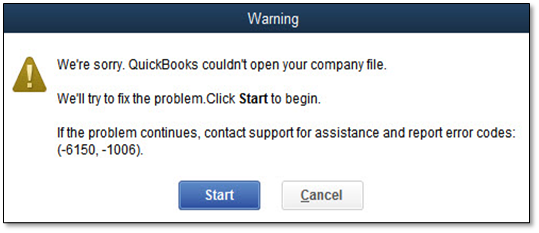
Have you encountered QuickBooks Error -6150, -1006 while trying to access your company file? If so, you are not alone. This error is common among QuickBooks users and can be a roadblock to managing your financial records. QuickBooks Error 6150 -1006 indicates the data file of your QuickBooks company is corrupt and needs to be repaired or you will need to go back and restore a prior backup. If you’re unable to access your company file, you may also encounter issues similar to QuickBooks Company File Not Found. In addition to these issues, misspelling the name associated with the file could result in an error.

QuickBooks Error -6150, -1006

Below, we will highlight the causes and solutions to resolve this error. Understanding this error will help you navigate your accounting tasks more smoothly.

What Does QuickBooks Error -6150, -1006 Signify?

QuickBooks Error -6150, -1006 indicates that QuickBooks cannot open the company file due to corruption in the file path or local system environment. This error arises when attempting to access a damaged company file, the associated network data (.nd) are involved. The backup file (.QBB) is corrupted and cannot be decompressed or restored. It prevents QuickBooks from connecting with its database manager.

Common Causes of QuickBooks Error -6150, -1006 Message

Understanding the major cause is the first step to fix a QuickBooks error. Some common reasons for QuickBooks error code 6150 1006 include:

  • Corrupted Company File – Physical damage to the .qbw file itself caused by unexpected system crashes, sudden power outages, or improper shutdowns.
  • Damaged Support Files – Damage to the Network Data (.nd) files that accompany your company file. It disrupts smooth communication between QuickBooks and the local database.
  • Incorrect File Path or Permissions – Accessing a company file located on a network drive, external storage, or a folder where Windows does not grant QuickBooks sufficient read permissions.
  • Outdated QuickBooks Installation – Running an older, unpatched version of QuickBooks Desktop that has known bugs or compatibility clashes with newer Windows operating system updates.
  • Interference from Security Software – Third-party antivirus programs or Windows Firewall is Blocking QuickBooks can prevent QuickBooks from accessing the company file.
  • Multi-User Network Setup Issues – Misconfigured QuickBooks Database Server Manager settings when attempting to access a company file across a shared network.

How To Identify QuickBooks Error -6150, -1006?

You must be familiar with the major reasons for this error to resolve it quickly. Go through the given pointers for better insight:

  • Physical damage within the main QuickBooks company file (.qbw) makes it unreadable by the program.
  • Corruption in the Network Data (.nd) helps QuickBooks communicate across networks and track data changes. It can trigger QuickBooks error 6150 -1006.
  • Running an obsolete version of QuickBooks Desktop can cause file compatibility issues.
  • Aggressive antivirus software, firewalls, or Windows Defender settings can block QuickBooks processes from accessing the company file path.
  • Force-closing QuickBooks, sudden power outages, or abrupt network disconnections while saving data can corrupt the file structure.
  • Problems with the QuickBooks Database Server Manager or QuickBooks Hosting Mode is Off can prevent users from opening a shared company file.

Important Points Associated With QuickBooks Error -6150, -1006

Here are the additional things that you must know if you have encountered this issue and wish to fix it.

CategoryDescription
Error ClassificationIt is a critical company file access error in QuickBooks Desktop.
Occurrencepops up when attempting to open, create, or restore a company file.
Primary Triggerscaused by corrupted .nd (Network Data) and .tlg (Transaction Log) files, or internal damage to the company file itself.
Environment ScopeCan occur in both single-user and multi-user setups due to database manager communication failures.
Security InterferenceThird-party antivirus programs, firewalls, or Windows Defender frequently block necessary QuickBooks processes, triggering the error.
Standard FixesRename extension files, run the QuickBooks File Doctor tool, or restore a recent data backup.

Troubleshooting Steps to Resolve QuickBooks Error Code 6150 1006

Check for CryptoWall viruses, repair your company file, and recover your company file data to resolve QuickBooks Error -6150, -1006. It is recommended to implement these solutions in the sequence provided below. Now, let’s examine these solutions more thoroughly:

Method 1: Check for CryptoWall

If your system is compromised by CryptoWall, it might block QuickBooks from accessing the company file. Consider the steps outlined below to check for such viruses and reach out to your antivirus provider if needed.
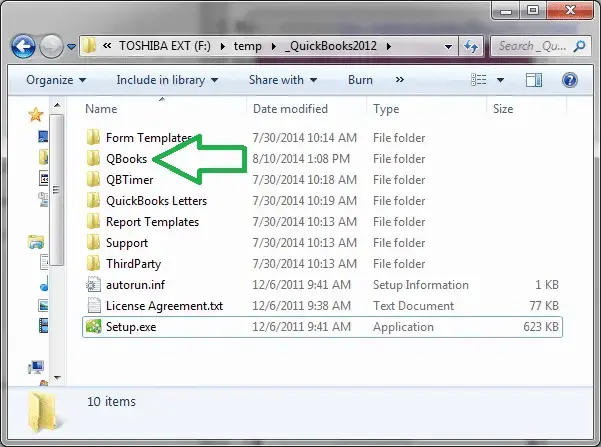
  • Open the Start Menu in Windows.
  • Search for File Explorer into the search bar and open it.
  • Navigate to your QuickBooks files, which are usually located on your C: drive.
open-the-QuickBooks-folder
  • Look for files labeled as decrypt (in .txt or .html formats).
  • If you do not find these files, your computer is unaffected. Move on to Step 2.
  • If you do come across these files, contact your antivirus provider to get help with the elimination of CryptoWall.
  • Do not proceed with additional steps until the virus has been eradicated.
  • Intuit Data Services is unable to repair files that have been compromised by this virus.

Method 2: Restore a Backup Company File

It is essential to recover your data from a backup file when the company file is corrupted. Here are the steps to restore a backup and fix QuickBooks Error -6150, -1006.
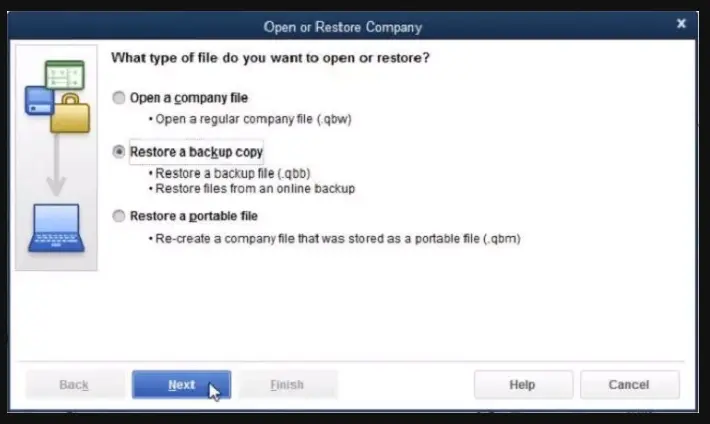
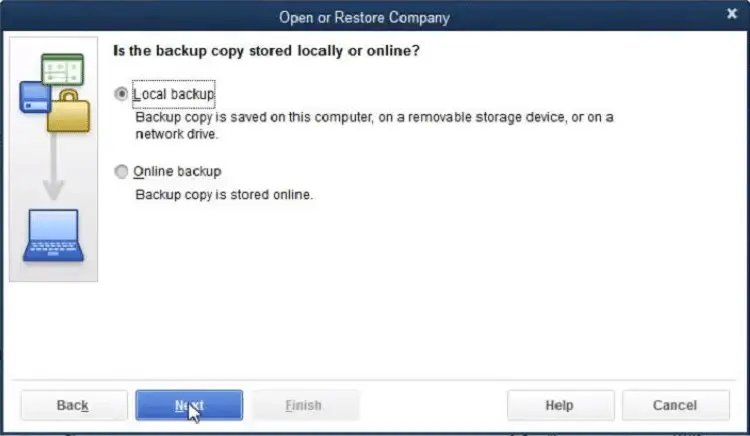
  • Find the latest backup file (QBB) you have.
  • Download QuickBooks and navigate to the File menu.
  • Select Restore a Backup Copy.
Restore a Backup Copy
  • Opt for Local Backup and locate your QBB file.
choose-the-local-backup-file
  • Follow the prompts on the screen to complete the restoration process.
  • Please note that any work completed since the last backup will be lost.
  • Verify QuickBooks Error -6150, -1006 after the restoration.

Disadvantages of Backup Restoration:

  • Many users neglect to back up their Company File.
  • This often happens because they are unaware of the importance of backup files.
  • An up-to-date backup is unavailable.
  • Backup restoration may not yield satisfactory outcomes.

Method 3: Use Auto Data Recovery to Recover Lost Data

QuickBooks uses Transactional Log (.TLG) files to restore data that has been damaged. It is capable of recovering the most recent transactions. This method is applicable for users of QuickBooks Pro, Premier, and Enterprise Solutions. Follow these steps to resolve QuickBooks Error -6150, -1006:
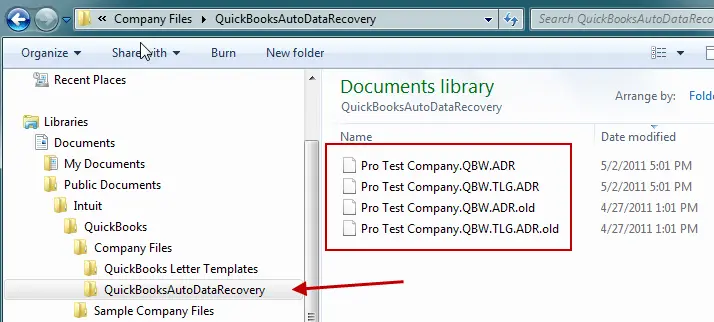
  • Create a new folder on your Desktop and label it as QBTest.
  • Navigate to and open the folder containing your company file.
  • Locate the file that bears the name of your company file with the TLG extension.
  • Right-click on this file and choose Copy.
  • Paste this file into the QBTest folder you created on your Desktop.
  • Navigate back to the location of your company file and access the QuickBooks Auto Data Recovery Folder.
QuickBooks Auto Data Recovery
  • Copy the file that corresponds to your company name with the QBD.adr extension.
  • Paste it into the QBTest folder.
  • Open your QBTest folder, right-click on the file with the .adr extension, and select Rename.
  • Delete the .adr portion from the filename and hit Enter.
  • Launch QuickBooks and open the company file that you transferred to the QBTest folder.
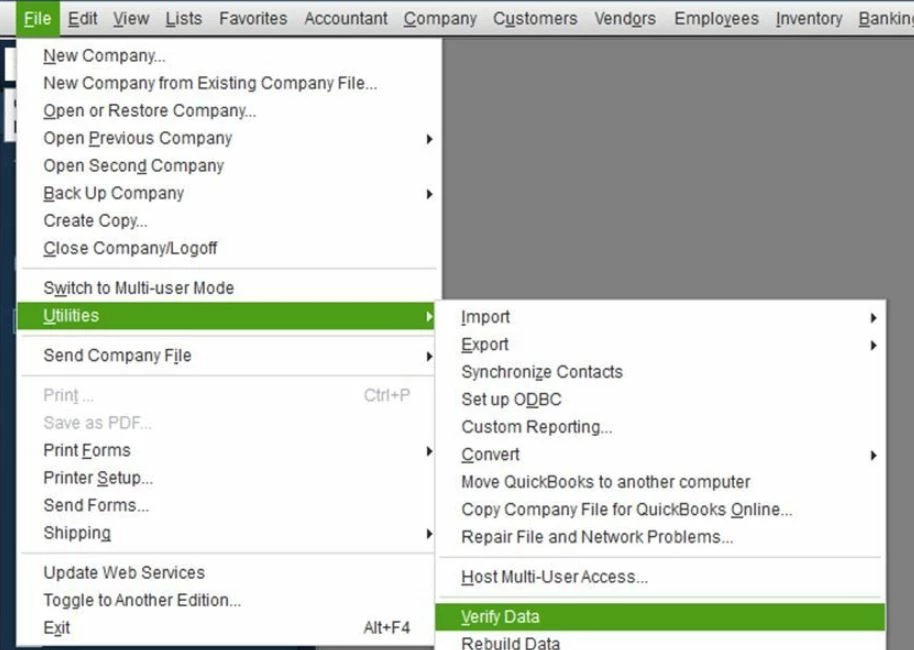
  • Click on File and select Utilities.
  • Verify Data to assess the integrity of the recovered version.
Verify-Data.webp

Data Service Team Tip: The Product Information screen indicates the location of your company file folder. To access it, press F2 or Ctrl+1 in the No Company Open Window.
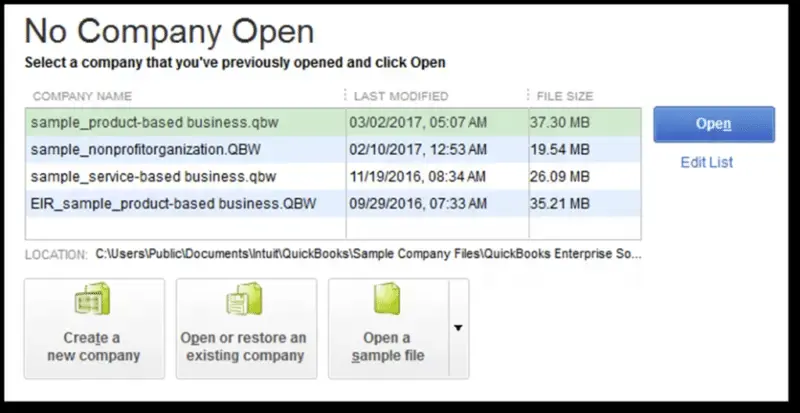
no-company-open

Method 4: Use the QuickBooks File Doctor

Users can utilize the QuickBooks File Doctor to resolve common issues associated with the company file. Follow the steps outlined below to do so:

  • Download the QuickBooks Tool Hub from Intuit’s official website.
  • Install the QuickBooksToolHub.exe file and agree to the conditions.
  • Navigate to the company file issues section.
  • Choose QuickBooks File Doctor.
  • Select the company file that has the error.
  • Click on Check File Damage Only and tap on Diagnose.
  • This will detect and correct the error.
  • Restart your system and then open QuickBooks after it is finished.

Method 5: Remove the Virus from the PC

  • Launch the QuickBooks file doctor.
  • Wait until the No company open pop-up appears on your screen.
  • Navigate to the File and Utilities menu.
  • Choose the Repair file option and the Network problems option.
  • A dialog box will then show up.
  • Click on the OK button.
  • A prompt requesting administrator rights will appear. Select Yes.
  • You will now see the wrench icon to access the File Doctor.
  • Click on the Continue button.
  • Enter your credentials and log in to the file.
  • The repair process will now commence.
  • Go to the advanced settings and select the Diagnosis file.
  • Click on Next.
  • Adhere to the on-screen prompts to complete the process.
  • Access your system’s antivirus and update the application.
  • Your antivirus is now active and prepared to scan the system.
  • It will work on eliminating malware and viruses.

Method 6: Change the Name of .ND and .TLG Files

Rename.ND and .TLG files will help you fix QuickBooks Error -6150, -1006. Follow these instructions to change the names of files and resolve this error.

  • Move to the folder where QuickBooks company files are kept.
  • The usual location is: C:\Users\Public\Documents\Intuit\QuickBooks\Company File.
  • Look for .ND and .TLG files in this directory.
  • Right-click on each file and choose Rename.
  • Append .old to the end of each file name.
  • For instance, change qbw.tlg to qbw.tlg.old and do the same for the .ND file.
  • Click Yes to confirm and apply the modifications.

Method 7: Update the QuickBooks Software

Keep QB software updated to safeguard the financial information, guarantee payroll computations, and avoid interruptions in service. Routine updates provide updates, latest tax tables, fixes for bugs, and current improvements to ensure seamless experience.

Note: If your QuickBooks Update Stuck, resolve the update issue first before installing the latest release.
Check for the Newest Release

  • Ensure that your software is up to date.
  • Launch QuickBooks Desktop.
  • Press F2 (or Ctrl+1) to access the Product Information window.
  • Examine your current version and release number.
  • Contrast it with the latest available release: QuickBooks 2024 R21_65.

Schedule Updates to Occur Automatically

  • Navigate to Help and select Update QuickBooks Desktop.
  • Click on the Options tab.
  • Choose Yes to enable automatic updates.
  • Select Close.

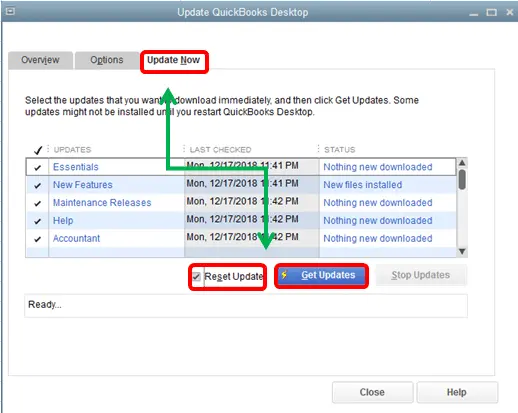
Perform an Immediate Update

  • Go to Help and select Update QuickBooks Desktop.
  • Choose the Update Now tab.
  • Click on Get Updates.
Update-QuickBooks-desktop
  • After the update completes, restart QuickBooks.
  • Select Install Now to apply the update when prompted.

Manual update (Download site)

Download the specific update file if you are unable to update through the software.

  • Exit QuickBooks Desktop.
  • Visit the Downloads & Updates page.
  • Choose the standard setup.
  • Select your Country, Product, and Version (Year).
  • Click Search.
  • Select Get the latest updates.
  • Open the file you downloaded to install the update.
  • After installation, restart your computer.

Data Service Team Tip: See the instructions for installing, updating, and setting up the QuickBooks Desktop Server Manager to update your server manager.

Method 8: Run the QB Database Server Manager

Run the QuickBooks Database Server Manager to fix network-related problems with your company file. The causes behind the occurrence of QuickBooks Error 6150, -1006 are corrupted business files with extension QBW and improper installation of QBDT. Follow these steps to scan your folders and resolve the issue.

  • Download and install the QuickBooks Tool Hub.
  • Open the Tool Hub and navigate to the Network Issues section.
  • Locate and start the QuickBooks Database Server Manager.
  • Proceed to the Scan Folders section.
  • Click Browse and choose the folder containing your company file (.qbw).
  • Choose OK and select Start Scan to initiate the process.

Method 9: Create a New QuickBooks Company File from Scratch

  • Move to QuickBooks Desktop.
  • Create a new Company file on the No Company Open Window.
  • Navigate to the QuickBooks Setup Window and fill in the required information.
  • Click on the Create Company option.
  • Create a customer, chart of accounts, services, and so on.

Method 10: Run QuickBooks Desktop as an Administrator

  • Close QuickBooks Desktop if it is currently running.
  • Locate the QuickBooks Desktop icon on Desktop.
  • Right-click on the QuickBooks icon.
  • Select Run as administrator from the given menu.
  • Click Yes or enter your Windows administrator credentials if a User Account Control (UAC) prompt appears asking for permission to make changes.

Method 11: Use QuickBooks Tool Hub

The QuickBooks Tool Hub contains various tools designed to address QuickBooks error code 6150 1006. Follow these steps to download, install, and use the QuickBooks File Doctor Tool.

  • Obtain the file for the QuickBooks Tool Hub.
  • Store the file in a chosen location on your computer.
  • Launch the downloaded QuickBooksToolHub.exe file.
  • Follow instructions displayed on the screen to install the Tool Hub.
  • Double-click on the icon to open QuickBooks Tool Hub.
  • Once in the Tool Hub, choose Company File Issues.
  • Execute the QuickBooks File Doctor Tool to resolve company file problems.

What are the Prerequisites to Resolve QuickBooks Error -6150, -1006?

There are a few prerequisites to resolve any QuickBooks error. Error -6150, -1004 occurs when QuickBooks tries to create, open, or use the company file. You must have a complete understanding of the same to bypass any last-minute problem:

  • Ensure you are logged into your computer with administrative rights. Many solutions and file modifications require elevated permissions.
  • Create a secure backup copy of your current company file to attempt repairs to prevent accidental data loss.
  • Ensure your QuickBooks application is updated to the latest release version so you have the newest bug fixes and security patches.
  • Make sure QuickBooks is closed on all computers if you are operating in a multi-user environment.
  • Have the official QuickBooks Tool Hub installed on your system. Tools like the File Doctor are often needed to diagnose and repair QuickBooks error code 6150 1006.

Preventing QuickBooks Error -6150, -1006

You can avoid facing this error while using QuickBooks by considering certain prevention strategies. These are as follows:

  • Regularly Back Up Your Company File – Create secure and routine backups of your QuickBooks data to ensure you can restore the information if file corruption occurs.
  • Keep QuickBooks Updated – Install the latest software updates and maintenance releases provided by Intuit to benefit from bug fixes, security enhancements, and improved stability.
  • Maintain Correct File Extensions – Never manually rename core QuickBooks files, as this can break the database connection and trigger access errors.
  • Configure Antivirus and Firewall Settings – Add exclusion rules for QuickBooks and its database manager in the security software to prevent false-positive blocks. It may disrupt file access.
  • Ensure Stable Network Connections – If you are operating on a multi-user network, use a reliable wired connection rather than unstable Wi-Fi to avoid network drops.
  • Perform Periodic Data Integrity Checks – Use the built-in Verify Data and Rebuild Data utilities in QuickBooks. It repairs minor database issues and prevents them from escalating into critical errors.

Conclusion!

QuickBooks Error -6150, -1006 can be a challenging hurdle for users, but the knowledge of causes and solutions can help you to navigate this error. Verify file integrity, update your QuickBooks software, or use the QuickBooks File Doctor tool to resolve it to troubleshoot Error -6150, -1006 in QuickBooks.

Frequent backups and maintenance of the company files are essential to prevent QuickBooks error 6150 -1006. If the problem persists, contact Data Service Team experts at +1(888)-718-7888 now for quick help. Minimize downtime and keep financial management streamlined with the right approach.

Frequently Asked Questions (FAQ’s)

Yes! This error is considered a common company file problem and occurs when QuickBooks Desktop is unable to open, create, or access your company data file. It points to underlying structural corruption in the tables. It can be triggered by damaged program installations, improper file extensions, interference from security software and malware.

The time it takes to repair this issue ranges from 10 to 30 minutes based on the cause and the method required to fix it. If the issue can be resolved through an automated diagnostic tool like the QuickBooks Tool Hub, the process takes a few minutes. However, the troubleshooting and verification process can extend anywhere from 30 minutes to an hour if the company file corruption is severe and you have to resort to restoring a backup.

Yes! Users can recover a corrupted QuickBooks company file without a manual backup through built-in diagnostic and repair utilities. The approach is to run the QuickBooks File Doctor. It scans and repairs common data damage along with network file issues. QB creates internal transactional logs and can help reconstruct missing data alongside the primary company file. The severe corruption may require professional data recovery services if no backup exists.

Run the QuickBooks File Doctor tool through the QB Tool Hub to diagnose and repair file corruption. If it does not open, open a sample company file to determine if the problem lies with the application itself, and force QB to recreate fresh configuration files. Ensure the software is updated and restore a recent backup of the company file if all else fails.

No! It is not safe to continue work after this error appears. This error indicates a critical company file issue and prevents QuickBooks from properly opening the database. You can attempt to bypass this error, force changes, or enter transactions. The file is in an unstable state and can result in data loss, permanent file corruption, and unrecoverable discrepancies in the financial records.

Yes! You must use QuickBooks Auto Data Recovery as a secondary resort for this error only if you do not have a recent manual backup along with simple solutions. ADR uses the transaction log files and self-generated recovery files to rebuild your damaged company file. It allows you to bypass the QuickBooks error code 6150 1006 and recover the recent network.

If you ignore this error, you may face severe consequences for your business operations and financial data integrity. This critical company file locks you out of your account. You will be unable to access vital accounting records and process payroll if you leave it unresolved. It may also indicate underlying data corruption within the company files. It leads to permanent data loss and forces you to rely on outdated backups.


About The Author

Steven Moody

Steven Moody is a bookkeeping and payroll specialist dedicated to helping businesses maintain accurate financial records and efficient payroll operations. His expertise includes payroll management, tax compliance, bookkeeping solutions, and financial reporting. Steven regularly shares insights on accounting best practices and business finance strategies. Outside of work, he enjoys traveling, exploring new places, and keeping up with the latest developments in business technology.

Steven Moody

QuickBooks Error

QuickBooks Error 12152: Why It Happens and How to Fix It

Read More
QuickBooks Error

QBCFMonitorService Not Running? Simple Ways to Restore It

Read More
QuickBooks Desktop

How to Successfully Install QuickBooks Desktop on Your Computer?

Read More
QuickBooks

Migrate from QuickBooks Desktop to Online: Complete Step-by-Step Guide

Read More
QuickBooks Error

QuickBooks Freezing Again? Why It Happens and How to Fix It

Read More