Running payroll smoothly is important for any business. When payday arrives and QuickBooks triggers an update error, operations can quickly come to a stop. If you are facing a QuickBooks Payroll Update Not Working issue, you are not alone. QuickBooks Desktop makes millions of employee payments daily, depending on frequent software updates and tax tables to stay compliant with federal and state tax laws. When an update fails, QuickBooks displays warning prompts, error codes or gets stuck on screens like Update Incomplete or Downloading Payroll Update.
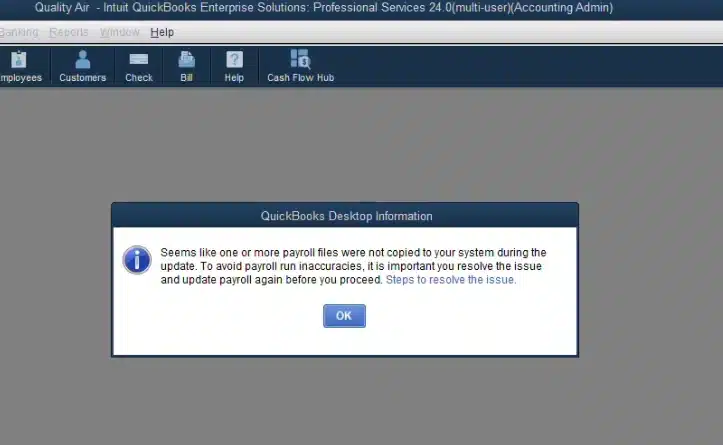
This handbook explains everything one needs to know about why payroll updates fail, how to identify common error codes, pre-troubleshooting steps and detailed solutions to restore your system.
To choose the right solution, it is always better to understand why QuickBooks Payroll Update Not Working:
When a payroll update fails, QuickBooks presents an error code. Here is a list of errors related to Payroll Update Issues:
| Error Code | Primary Cause |
| Error PS038 | Paychecks stuck in Online to Send status preventing tax table downloads. |
| Error PS077 / PS032 | Invalid billing information, damaged payroll setup files, or unregistered software. |
| Error 15240 | Internet Explorer/Edge connection settings, wrong publisher check, or firewall permissions. |
| Error 15270 | An incomplete file download caused by background network interruptions or closed applications. |
| Error 15102 | The download location path specified in QuickBooks is unavailable or invalid. |
Before making any technical solution, make sure you complete the following tasks:
Follow these detailed stepwise repair methods to get back on track with payroll.
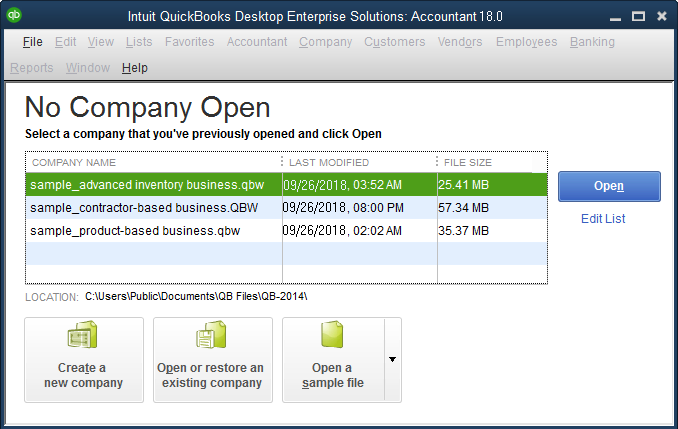
In case your error is related to stuck paychecks, QuickBooks is unable to download updates while pending paychecks remain unsent.
This helps QuickBooks build a clean directory since corrupted update components in the CPS folder block new tax table files.
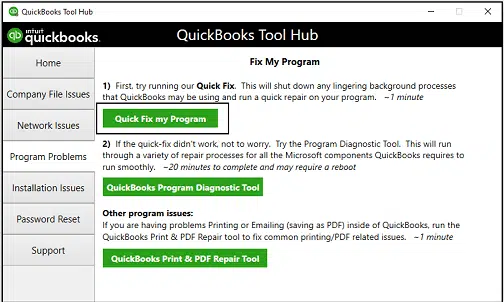
Intuit’s Tool Hub utility repairs background components like .NET Framework and installation files.
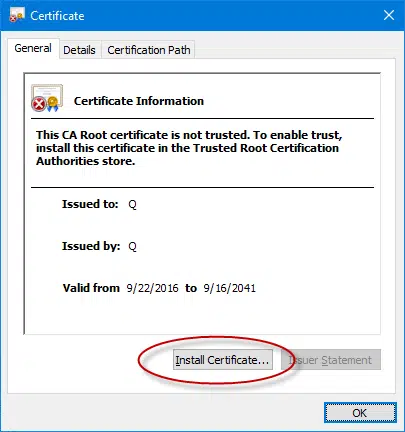
Whenever there are problems accessing QuickBooks due to security programs, re-verify the digital certificate and configure firewall settings to enable access.
Note: If the problem continues, try Verify and Rebuild Data in QuickBooks Desktop to repair damaged company file data.
Prevent QuickBooks payroll update Not Working errors with these ongoing routine maintenance practices:
A QuickBooks Payroll Update Not Working error can interrupt your workflow, but it is easy to solve. This error mainly occurs due to outdated programs, damaged CPS folders, unmailed paychecks and network security exceptions. Follow the above solutions, from basic software upgrades to fixing the problems of the stuck paycheck and refreshing the CPS folders, to get your payroll system back to working order. Keep your software updates and verify your subscription status regularly to ensure smooth, uninterrupted payroll processing in future pay periods.
Need any help regarding payroll update errors delaying your payday? Contact the Data Services Team today +1(888)-718-7888 for instant troubleshooting to get your tax tables and software running smoothly.

QuickBooks Payroll Won’t Update due to a possible temporary network interruption, service disruption on the side of Intuit’s servers, or expiry of the credit card for your payroll service. This problem could also be related to incorrect date and time settings in your system or interference from background antivirus software.
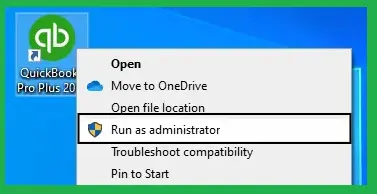
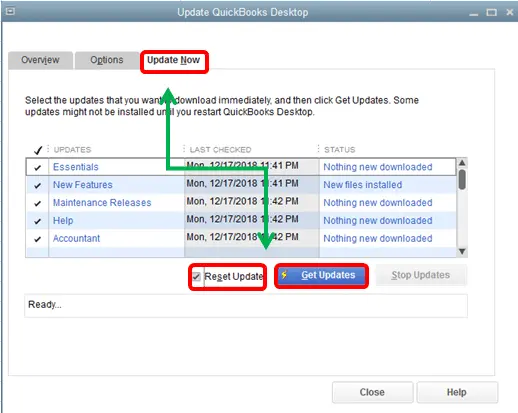
The fastest way to fix update problems is to restart the computer, open QuickBooks as an Administrator and run a quick update reset. Go to Help > Update QuickBooks Desktop, select the Update Now tab, check Reset Update and click Get Updates. This clears out corrupted temporary files causing the hang-up.
QuickBooks mostly shows the Payroll Update Failed message when it faces an interruption while downloading or extracting the new tax tables. Some of the common triggers include damaged files inside the CPS folder, paychecks stuck in an Online to Send status, misconfigured Windows Firewall settings blocking ports 80 or 443 and inactive or unverified payroll subscription status.
Updating QuickBooks Payroll will not delete or change the financial records, employee information or past paychecks. However, to ensure maximum safety, always create a manual local backup before running any major updates. Also, make sure no other users are logged into the company file by switching to Single-User Mode.
Major Windows updates reset network security permissions or disable core components like the .NET Framework and Digital Certificates. To fix this, open the QuickBooks Tool Hub. Run the Quick Fix my Program tool from the Program Problems tab. If that does not work, reinstall your digital certificates by right-clicking QBW32.exe in your installation folder. Select Properties > Digital Signatures and install the Intuit certificate.
Yes. In order for Intuit to be able to run the latest payroll tax tables for you, you must have an updated version of QuickBooks Desktop software. Otherwise, if your version of QuickBooks is outdated or obsolete, the tax tables cannot be updated automatically.
Yes, there is a distinct difference. In QuickBooks Updates, modifications are made to the core accounting program, fixing software bugs, performance issues and security vulnerabilities. In Payroll Updates, current federal, state and local tax rates, tax bracket calculations and e-file forms are downloaded into your payroll module.

Get Free Consultation for QuickBooks Upgrade
(2021, 2022, 2023)


