Looking for a practical way to troubleshoot the QuickBooks program without installing multiple diagnostic utilities? QuickBooks Tool Hub 1.6.0.8 brings various troubleshooting options together in one place. Instead of using separate utilities for different problems, users can open Tool Hub and select the tool that matches the issue they are experiencing.
It can help with common issues such as company file errors, network problems, installation issues, program crashes, and printing or PDF errors. QuickBooks Tool Hub can help troubleshoot many common QuickBooks Desktop issues, but the results depend on the specific error, company file condition, Windows configuration, and underlying cause.
In this guide, we’ll explain how to download and install QuickBooks Tool Hub, what tools it includes, and how you can use them to troubleshoot common QuickBooks Desktop errors.
The QuickBooks Tool Hub 1.6.0.8 download is mainly useful when you already know that the problem is related to your QuickBooks Desktop program, company file, network, or installation. The available options are divided into separate tabs, making it easier to narrow down the problem before trying a repair.
Here are some of the main areas you can troubleshoot:
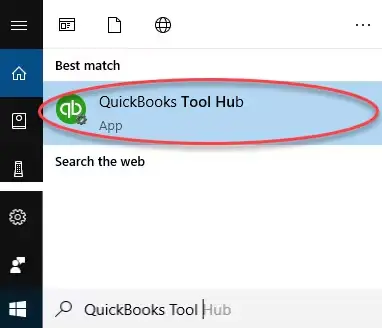
QuickBooks Tool Hub provides different troubleshooting options depending on the problem you’re experiencing:
Before starting the QuickBooks Tool Hub Windows 11 download, make sure your computer is ready for the installation. Before installing QuickBooks Tool Hub, make sure your Windows system meets the current requirements listed by Intuit. You should also close the QuickBooks program before downloading and installing the tool.
Keep these basic points in mind before you begin:
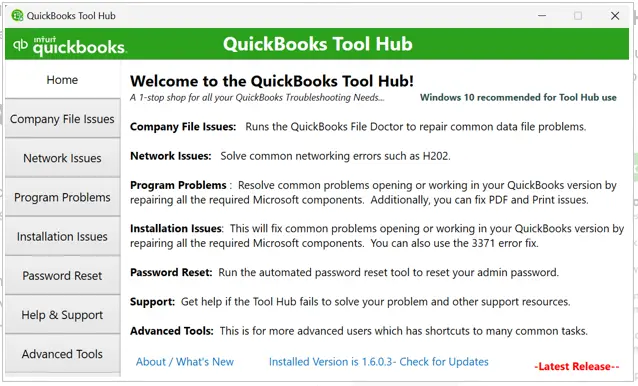
If you have already installed Tool Hub, you don’t necessarily need to download it again. Open the Tool Hub, select the Home tab, and check the version displayed at the bottom of the window.
Once you have checked the basic requirements, you can start the QuickBooks Tool Hub free download. Intuit 1.6.0.8 as the most recent version and recommends using Tool Hub on Windows 11, 64-bit.
Before downloading, close the QuickBooks program. Then follow these steps:
After the QuickBooksToolHub.exe file has downloaded, you can install it on your Windows 11 computer. Here’s how:


Once Tool Hub opens, you’ll see the different troubleshooting sections on the left side. Each section is designed for a particular type of QuickBooks Desktop problem.
Once QuickBooks Tool Hub is installed, you can use its different tabs according to the problem you are facing. Each tab focuses on a particular type of QuickBooks Desktop issue, so you can go directly to the relevant troubleshooting option instead of trying different tools one by one.
If QuickBooks cannot open a company file or reports a company-file error, start with the Company File Issues section. Depending on the problem, you can try Quick Fix my File or QuickBooks File Doctor.
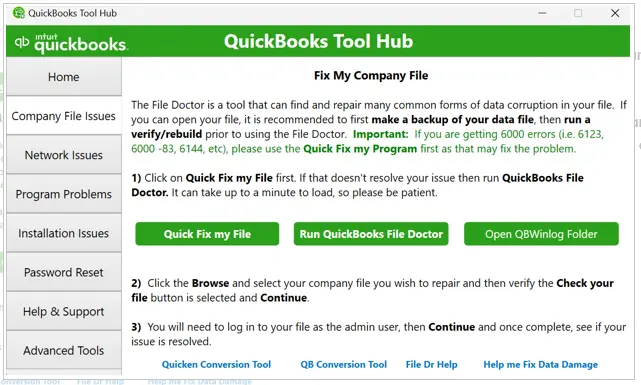
You’ll find tools such as Quick Fix my File and QuickBooks File Doctor here. Quick Fix my File is a good place to start with common file problems, while File Doctor can help diagnose certain company file and network-related issues.
Tip: Before troubleshooting a company file with File Doctor or other repair utilities, keep a recent backup of the company file. This gives you a recovery option if additional data-repair steps are required.
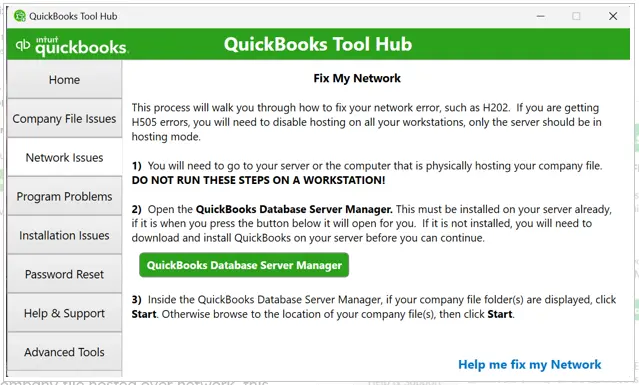
When QuickBooks cannot connect to a company file stored on another computer, go to Network Issues. This section is useful for multi-user connection problems, including Error H202, Error H303 or Error H505. Make sure you run the network tools from the computer hosting the company file.
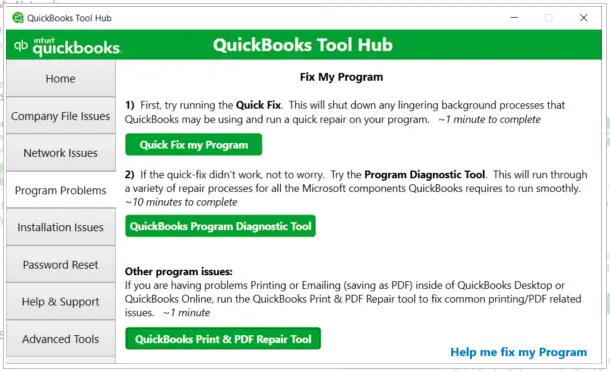
If QuickBooks is freezing, crashing on launch, or showing that QuickBooks has stopped working, the Program Problems tab is a good place to start. Quick Fix My Program closes background QuickBooks processes and helps restart QuickBooks cleanly. The Print & PDF Repair Tool is designed to troubleshoot supported issues where QuickBooks cannot print or create PDF files.
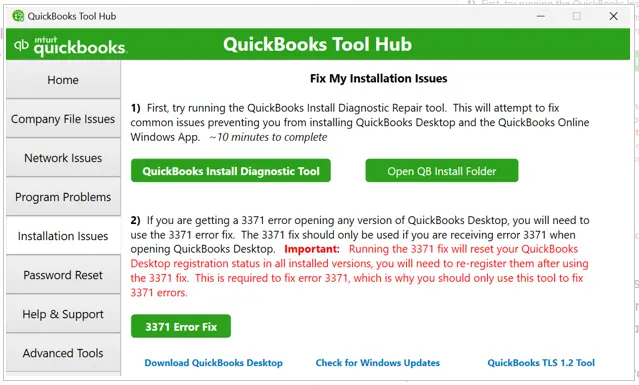
If you encounter problems while installing, updating, repairing, or uninstalling QuickBooks Desktop, use the Installation Issues tab. It can help troubleshoot installation errors such as 1935 and 1904 and certain update-related problems. The QuickBooks Install Diagnostic Tool can help identify and repair issues involving Microsoft components that QuickBooks depends on, including .NET Framework and C++ components. If standard installation troubleshooting does not resolve the problem, the QuickBooks Clean Install Tool can remove QuickBooks installation files so you can perform a fresh installation.
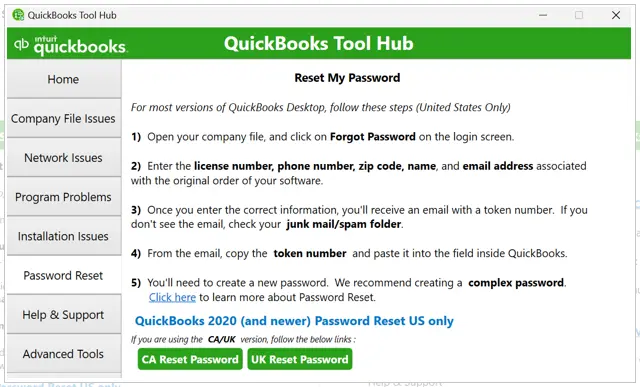
If you have forgotten a supported QuickBooks Desktop administrator password, open the Password Reset tab. Follow the instructions provided by Tool Hub and enter the required information to complete the reset.
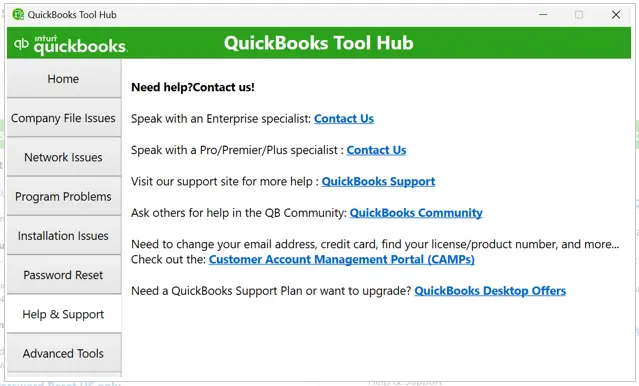
When the available troubleshooting tools do not solve the problem, the Help & Support tab can point you toward additional resources. You can use it to find support options for QuickBooks Desktop or Tool Hub.
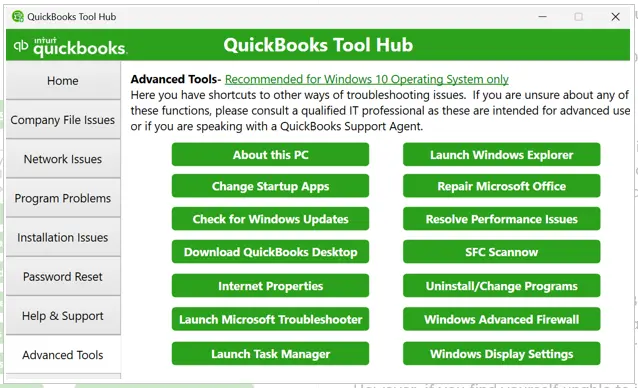
The Advanced Tools tab provides shortcuts to several Windows settings that can be useful for deeper troubleshooting. Most users should first try the regular Tool Hub sections and use these options only when additional Windows-level troubleshooting is needed.
Note: If QuickBooks runs slowly or becomes unresponsive, the QuickBooks Refresher Tool can help refresh background processes and restore smooth performance without affecting your company file.
Not sure which QuickBooks Tool Hub tool to use? Match your QuickBooks Desktop problem with the appropriate Tool Hub section and troubleshooting utility below.
| Problem | Tool Hub Section | Tool to Try |
| Company file won’t open | Company File Issues | Quick Fix My File / File Doctor |
| H202 or network problem | Network Issues | Network troubleshooting |
| QuickBooks freezes or crashes | Program Problems | Quick Fix My Program |
| Installation problem | Installation Issues | Install Diagnostic Tool |
| Printing/PDF problem | Program Problems | Print & PDF Repair Tool |
QuickBooks Tool Hub can help troubleshoot common QuickBooks Desktop problems. The right tool depends on the error and what is happening with your QuickBooks program, company file, or network.
If you see Error H202 while opening a company file in multi-user mode, the problem may be related to the network connection or hosting computer. Open the Network Issues tab and use the available network troubleshooting options. Make sure you run the tool from the server computer.
Many company file problems are associated with 6xxx-series errors. If QuickBooks cannot open or access your company file, start with the Company File Issues tab. You can try Quick Fix My File first and then use QuickBooks File Doctor if the problem continues.
Error 6123 can prevent QuickBooks from opening or accessing a company file correctly. In this situation, start with the Company File Issues tools and follow the recommended troubleshooting steps. If the problem is related to the network or multi-user connection, check the Network Issues section as well.
QuickBooks Error 3371 can prevent QuickBooks Desktop from opening correctly. Follow Intuit’s recommended troubleshooting steps for Error 3371 and use Tool Hub when the applicable troubleshooting option is available.
When QuickBooks cannot print forms, create PDFs, or complete certain PDF-related tasks, open Program Problems. The QuickBooks Print & PDF Repair Tool is designed for supported printing and PDF issues.
If QuickBooks freezes, crashes, or stops responding while you are working, try the Program Problems tab. Start with Quick Fix my Program to address common program issues before moving to more advanced troubleshooting.
Sometimes the problem may be with Tool Hub itself rather than QuickBooks Desktop. If QuickBooks Tool Hub does not install, open, or run a troubleshooting tool, try these simple steps before reinstalling it.
If Windows or your browser blocks the QuickBooksToolHub.exe file, download the Tool Hub again using another supported browser. If Microsoft Defender shows a warning, review the message carefully before deciding whether to continue.
If Tool Hub does not open after installation, close it and try opening it again. You can also restart your computer and then open Tool Hub from the desktop shortcut or Windows Search.
If a troubleshooting tool does not start, make sure the Tool Hub installation has finished and that you have a stable internet connection. Some tools may need additional components to download before they can run.
If Tool Hub still does not work, you can uninstall the current version and install the latest version again. After reinstalling, open the Home tab and check the Tool Hub version before using the troubleshooting tools.
The QuickBooks Tool Hub download link can save time when you are trying to troubleshoot common QBDT problems. Instead of looking for different troubleshooting utilities, you can find several options in one place.
QuickBooks Tool Hub 1.6.0.8 brings several useful troubleshooting options together, making it easier to deal with common QuickBooks Desktop problems. Whether you are facing a company file issue, network error, program problem, installation issue, or printing and PDF error, you can start by selecting the relevant Tool Hub section.
For the best experience, use Tool Hub on a supported Windows system and download it from Intuit. If Tool Hub doesn’t resolve the issue, use the specific QuickBooks error or symptom to find the appropriate troubleshooting guide or official Intuit support resource.
QuickBooks Tool Hub 1.6.0.8 is a free Intuit utility for troubleshooting common QuickBooks Desktop problems. It provides access to tools for company-file, network, program, installation, PDF, printing, and other issues. This guide explains what QuickBooks Tool Hub does, how to download and install it, and which tool to use for common QuickBooks Desktop problems.
Yes, the QuickBooks Tool Hub 1.6.0.8 download is completely free. Intuit provides it as a no-cost utility for QuickBooks Desktop users. There’s no subscription or one-time fee involved.
QuickBooks Tool Hub supports QuickBooks Desktop for Windows, including supported versions such as Pro, Premier, Enterprise, and Accountant editions. It is not available for QuickBooks Desktop for Mac.
Yes, QuickBooks Tool Hub Windows 11 is fully supported. A 64-bit system is recommended for the best performance. Make sure your .NET Framework and Visual C++ packages are current before installing.
Match your problem to the tab, for company file errors go to Company File Issues, multi-user network issues go to Network Issues, crashes and PDF problems go to Program Problems, and install failures go to Installation Issues. The Home tab also describes each section to help you decide.
Open Tool Hub and select Company File Issues. Choose QuickBooks File Doctor, select the company files you want to check, and follow the on-screen instructions to complete the troubleshooting process.
Open QuickBooks Tool Hub and select Program Problems. Choose Quick Fix my Program and allow the tool to complete its process before opening QuickBooks again.
Yes, Tool Hub includes an Installation Issues section for certain problems that occur while installing, uninstalling, or repairing QuickBooks Desktop. Select the appropriate troubleshooting option based on the issue.
For multi-user or network connection problems, open the Network Issues section. The available tools can help troubleshoot problems such as Error H202 when QuickBooks cannot connect to the company file on the server.
First, close QuickBooks and try opening Tool Hub again. If it still does not open, restart Windows and make sure you are using a supported Windows version. You can also reinstall the latest available Tool Hub version if necessary.
Installation may fail because of Windows settings, missing system components, or an issue with the downloaded installer. Make sure you are using a supported Windows system and download the installer again from the official QuickBooks source.
Open Tool Hub and select the Home tab to check the installed version. If a newer version is available, download and install the latest version from the official QuickBooks website rather than relying on an outdated installer.

Get Free Consultation for QuickBooks Upgrade
(2021, 2022, 2023)


